Tag: frugal installation

PuppEX (Puppy Linux) KDE Trixie64 with Wayland ::: Build 251222

ABOUT
Some people think that using Wayland in a Linux System is very important. Wayland is said to be the modern, simpler, more secure replacement for the aging X11 display server, offering better performance. I have therefore made a PuppEX System which uses Wayland instead of the X11 display server. I call it PuppEX Trixie64 KDE Wayland Build 251222. My new Puppy Linux derivative is built using the Trixie Build Script (mklive-trixie). The new System is compatible with Debian Trixie – Debian 13. It is for UEFI computers and non-UEFI computers. Build 251222 uses KDE Plasma 5:162 as Desktop environment (DE). “Compatible with Debian 13” means that you can use the Apt command (apt update, apt upgrade, apt install MyUsefulPackage etc.) and Synaptic for installing thousands of new Debian packages in PuppEX Trixie64. Study all pre-installed packages in PuppEx Trixie64 KDE.

Install to hard drive
PuppEX Trixie64 can easily be installed manually (frugal install) to hard drive if you have at least one Linux system installed. You must also use Grub as boot loader.

READ ABOUT Wayland…

READ ABOUT How to make a frugal installation of PuppEX – Instruction…

SCREENSHOTS
1. The Desktop for the ordinary user puppy
2. The Desktop for root
3. Showing SDDM’s login screen

READ MORE…

Read about my Android-x86 Systems – 11, 10, Pie, Oreo, Nougat, Marshmallow, Lollipop and KitKat at andex.exton.net – latest is AndEX 11 (with GAPPS), AndEX 10 (with GAPPS) and AndEX Pie 9.0 (also with GAPPS)!
and
about my Android 16, 15, 14, 13, 12, 11, 10, Pie, Oreo, Nougat, Marshmallow and Lollipop versions for Raspberry Pi 5, Pi 4 and  Pi 3/2 at raspex.exton.se – latest is RaspAnd 16 (with GAPPS), RaspAnd 15 (also with GAPPS), RaspAnd 14 (also with GAPPS), 13 and 12 (without GAPPS), RaspAnd 11 (with GAPPS) and RaspAnd Oreo 8.1 (also with GAPPS)!



Follow me on Facebook…

No Comments extonExton Linux Systems

PuppEX Slack64 – compatible with Slackware 15 – with NVIDIA’s proprietary driver 58.82.09 and kernel 6.16.9-exton ::: Build 251002

This Puppy Linux derivative is built by me using Puppy Linux Woof-CE Builder. It is compatible with Slackware 15.0 and uses kernel 6.16.9-exton. This Puppy system works very well on UEFI and non-UEFI computers. You can build your own Puppy Linux Slackware 15 compatible system using PuppEX as “groundwork”. Just start the remaster tool (Remaster Puppy) and follow the instructions given by the remaster script.

Study all installed packages in this PuppEX build.

NVIDIA
I’ve installed NVIDIA‘s proprietary driver 58.82.09. That’s because I could not get X to work on one of my computers with a new NVIDIA card RTX 4060 in any other way. The driver will be used if you have a relatively new NVIDIA card. If the card isn’t automatically recognized after boot you shall run the command xorgwizard. When choosing card you shall go for Auto. After that restart X and you will hopefully enter the Desktop as root.

How to make a frugal installation – Instruction…

Development tools
If you need development tools you shall download and load devx_s15pup64_22.12.sfs. Put devx in the folder where you have “installed” PuppEX and then click on it to load it. Test it by running the command which make.

SCREENSHOTS
1. First screen after boot
2. Running in VirtualBox
3. Running the lspci command
4. Showing a WiFi connection
5. Showing how to configure sound
6. Configure a wired Internet connection

READ MORE…

Read about my Android-x86 Systems – 11, 10, Pie, Oreo, Nougat, Marshmallow, Lollipop and KitKat at andex.exton.net – latest is AndEX 11 (with GAPPS), AndEX 10 (with GAPPS) and AndEX Pie 9.0 (also with GAPPS)!
and
about my Android 16, 15, 14, 13, 12, 11, 10, Pie, Oreo, Nougat, Marshmallow and Lollipop versions for Raspberry Pi 5, Pi 4 and  Pi 3/2 at raspex.exton.se – latest is RaspAnd 16 (with GAPPS), RaspAnd 15 (also with GAPPS), RaspAnd 14 (also with GAPPS), 13 and 12 (without GAPPS), RaspAnd 11 (with GAPPS) and RaspAnd Oreo 8.1 (also with GAPPS)!


Follow me on Facebook…

No Comments extonExton Linux Systems

PuppEX Trixie64 (Puppy Linux) – compatible with Debian 13 – with KDE Plasma 5:162 as DE :: Build 250901

NEWS 250901 ABOUT PuppEX Trixie64 – BUILD 250901 – with KDE Plasma 5:162

My new Puppy Linux derivative is built using the Trixie Build Script (mklive-trixie). It is compatible with Debian Trixie – Debian 13. It is for UEFI computers and non-UEFI computers. Build 250901 uses KDE Plasma 5:162 as Desktop Environment (DE). “Compatible with Debian 13” means that you can use the Apt command (apt update, apt upgrade, apt install MyUsefulPackage etc.) and Synaptic for installing thousands of new Debian packages in PuppEX Trixie64. PuppEX Trixie64 can easily be installed manually (frugal install) to hard drive if you have at least one Linux system installed. You must also use Grub as boot loader.

How to make a frugal installation – Instruction…

NOTE ABOUT SOUND
In PuppEX Trixie64 Build 250901 with KDE you will have sound also when logged in as root. That is essential since you normally run all Puppy/PuppEX versions as root. Screenshot of the Desktop for root…

SPECIAL NOTE ABOUT PuppEX Trixie64 KDE BUILD 250901
Normally you run all Puppy Linux versions as root. I.e. you will automatically be logged in as root to the desktop. Not as regards Build 250901 though. When the boot process is ready you will end up at LightDM‘s Login Manager page. Log in as the ordinary user puppy with password puppex. You will then enter the KDE Plasma Desktop. You can also log in to KDE as root with password root. While logged in as the ordinary user puppy you can of course use Sudo to become root. Example command: sudo pcmanfm.

REMASTER PuppEX Trixie64
Please note that you can build your own Puppy Trixie64 version using PuppEX Trixie64 as a “template”. Do it like this:
1) Make a frugal install of PuppEX Trixie64 – Instruction
2) Change everything to your liking
3) Start the remasterscript (QuickRemaster 1.7.1).
Watch this screenshot…

NOTE: The wallpapers are (of course) generated by AI.

READ MORE…

Read about my Android-x86 Systems – 11, 10, Pie, Oreo, Nougat, Marshmallow, Lollipop and KitKat at andex.exton.net – latest is AndEX 11 (with GAPPS), AndEX 10 (with GAPPS) and AndEX Pie 9.0 (also with GAPPS)!
and
about my Android 16, 15, 14, 13, 12, 11, 10, Pie, Oreo, Nougat, Marshmallow and Lollipop versions for Raspberry Pi 5, Pi 4 and  Pi 3/2 at raspex.exton.se – latest is RaspAnd 16 (with GAPPS), RaspAnd 15 (also with GAPPS), RaspAnd 14 (also with GAPPS), 13 and 12 (without GAPPS), RaspAnd 11 (with GAPPS) and RaspAnd Oreo 8.1 (also with GAPPS)!


Follow me on Facebook…

No Comments extonExton Linux Systems

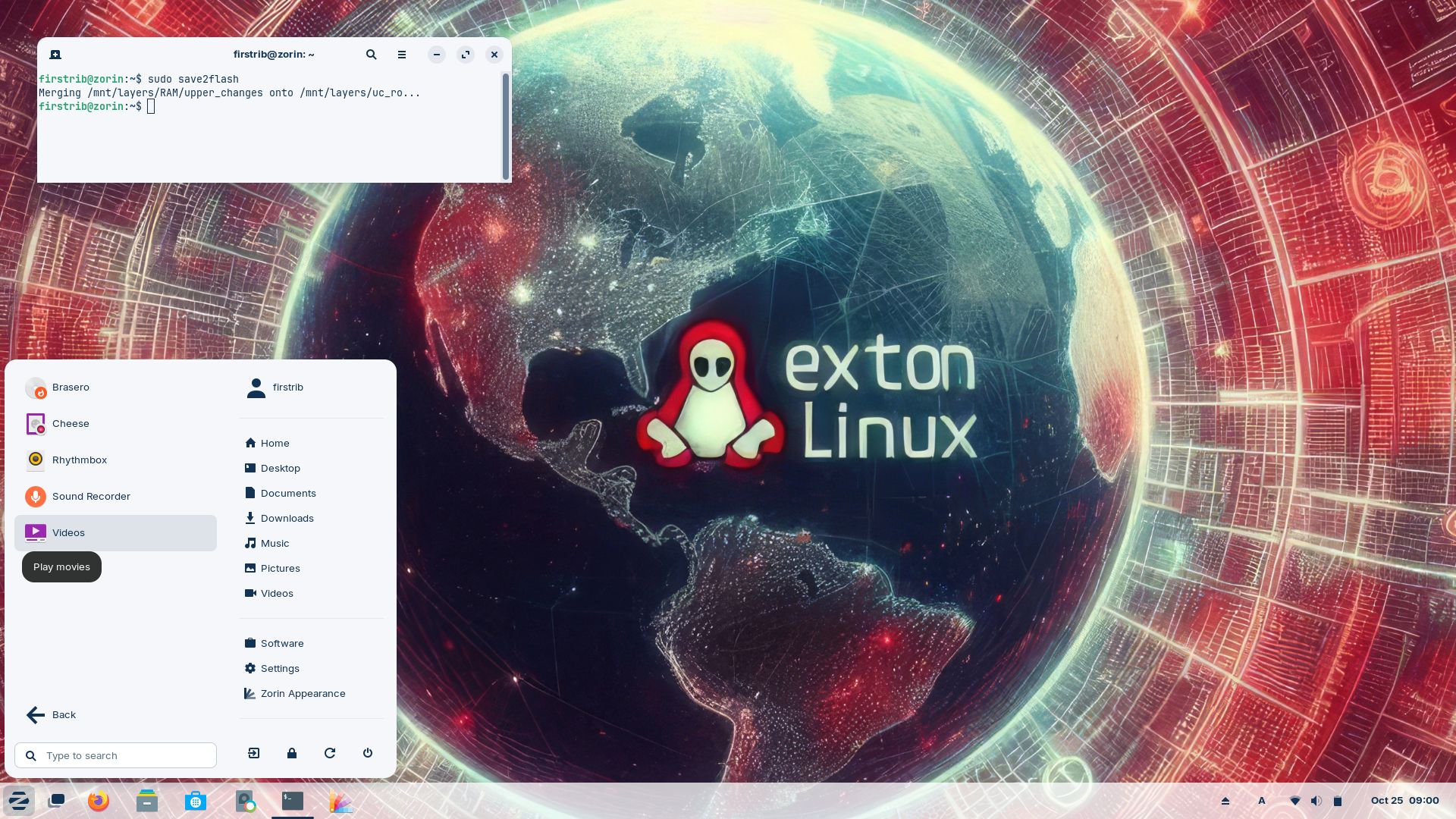
How to make a simple Frugal install (Puppy Linux like) of many major Linux distributions :: 241025

Recently I found a way to make a simple Frugal install (Puppy Linux like) of many major Linux distributions.  The method is called FirstRibIT. It was announced by wiak at the Puppy Linux Discussion Forum 240630.  At the moment the following Linux distributions are supported:
1 FirstRib anypup (default BookwormPup64_10.0.6.iso; rough shutdown) firstribed using FR wiak initrd
2 PopOS64
3 EndeavourOS
4 Manjaro
7 MakuluLinux-Shift-x64-Ubuntu
8 MX Linux X64
13 Zorin
14 NeonKDE
15 Garuda (warning: Cancel out of disk partitioning install)
16 Bodhi
17 MassOS
18 TinyCoreLinux64
20 Intel Clear Linux
21 Ubuntu_live
23 linux-lite
24 bunsen-lithium
25 LXLE-Focal
26 tails-amd64
27 Debian_live
28 Regata_OS
29 Kodachi
30 SysLinuxOS
31 4MLinux
33 Fedora
34 Xubuntu
35 Lubuntu
36 Mabox
37 Sparky
38 Spiral
44 Linux Mint
98 Generic Arch Linux based
99 Generic Debian/Ubuntu based

NOTE1: To be able to use FirstRibIT you’ll have to have one Linux system installed and use Grub as boot loader.

READ MORE about how to use FirstRibIT…

##########################################################################

Read about my Android-x86 Systems – 11, 10, Pie, Oreo, Nougat, Marshmallow, Lollipop and KitKat at
andex.exton.net – latest is AndEX 11 (with GAPPS), AndEX 10 (with GAPPS) and AndEX Pie 9.0 (also with GAPPS)!
and
about my Android 14, 13, 12, 11, 10, Pie, Oreo, Nougat, Marshmallow and Lollipop versions for Raspberry Pi 5, Pi 4 and  Pi 3/2 at
raspex.exton.se
– latest is RaspAnd 14 (with GAPPS), 13 and 12 (without GAPPS), RaspAnd 11 (with GAPPS) and RaspAnd Oreo 8.1
(also with GAPPS)!
No Comments extonLinux

PuppEX (Puppy Linux) Bookworm64 with LXQt as DE :: Build 240924

NEWS ABOUT PuppEX Bookworm64 Build 240924
My new Puppy Linux derivative is built using the Bookworm Build Script. Latest from 240924. The system is compatible with Debian Bookworm – Debian 12. This version of PuppEX uses LXQt as Desktop environment (DE). It is for UEFI computers and non-UEFI computers. This PuppEX version runs very well in VirtualBox/VMware. You can run it in full screen in VirtualBox, since VirtualBox Guest Additions are pre-installed. Watch this screenshot…

Debian 12
Compatible with Debian 12
means that you can use the apt command. (apt update, apt upgrade, apt install MyUsefulPackage etc) and Synaptic for installing thousands of new Debian packages in PuppEX. Both PuppEX Bookworm64 versions can easily be installed manually to hard drive if you have at least one Linux system installed. You must also use Grub as boot loader. Read more about how to do that at the INFO site.

SCREENSHOTS
1. PuppEX Bookworm64 running in full screen in VirtualBox
2. Connection to a wireless network
3. root’s desktop – LXQt
4. Showing a frugal installation
5. The apt command in action

READ MORE …

Read about my Android-x86 Systems – 11, 10, Pie, Oreo, Nougat, Marshmallow, Lollipop and KitKat at
andex.exton.net – latest is AndEX 11 (with GAPPS), AndEX 10 (with GAPPS) and AndEX Pie 9.0 (also with GAPPS)!
and
about my Android 14, 13, 12, 11, 10, Pie, Oreo, Nougat, Marshmallow and Lollipop versions for Raspberry Pi 5, Pi 4 and  Pi 3/2 at
raspex.exton.se
– latest is RaspAnd 14 (with GAPPS), 13 and 12 (without GAPPS), RaspAnd 11 (with GAPPS) and RaspAnd Oreo 8.1
(also with GAPPS)!
No Comments extonExton Linux Systems

AndEX Oreo 8.1 (Android-x86_64) – Build 180103 – with GAPPS, Aptoide App Manager and Win 10 Launcher

NEWS 180103 about AndEX Oreo 8.1
My new build of Android x86_64 – andex-x86_64-oreo-8.1-gapps-aptoide-windows-1280mb-180103.iso can be installed to hard drive or on a USB stick. You can also run the system live. I.e. from a DVD or a USB stick. On some computers you’ll have to start up AndEX 8.1 in compatibility mode (VESA) though. NOTE: You can run AndEX Oreo Build 180103 on newer laptops and Desktop computers. The sound and video performance is generally very very good.

WARNING
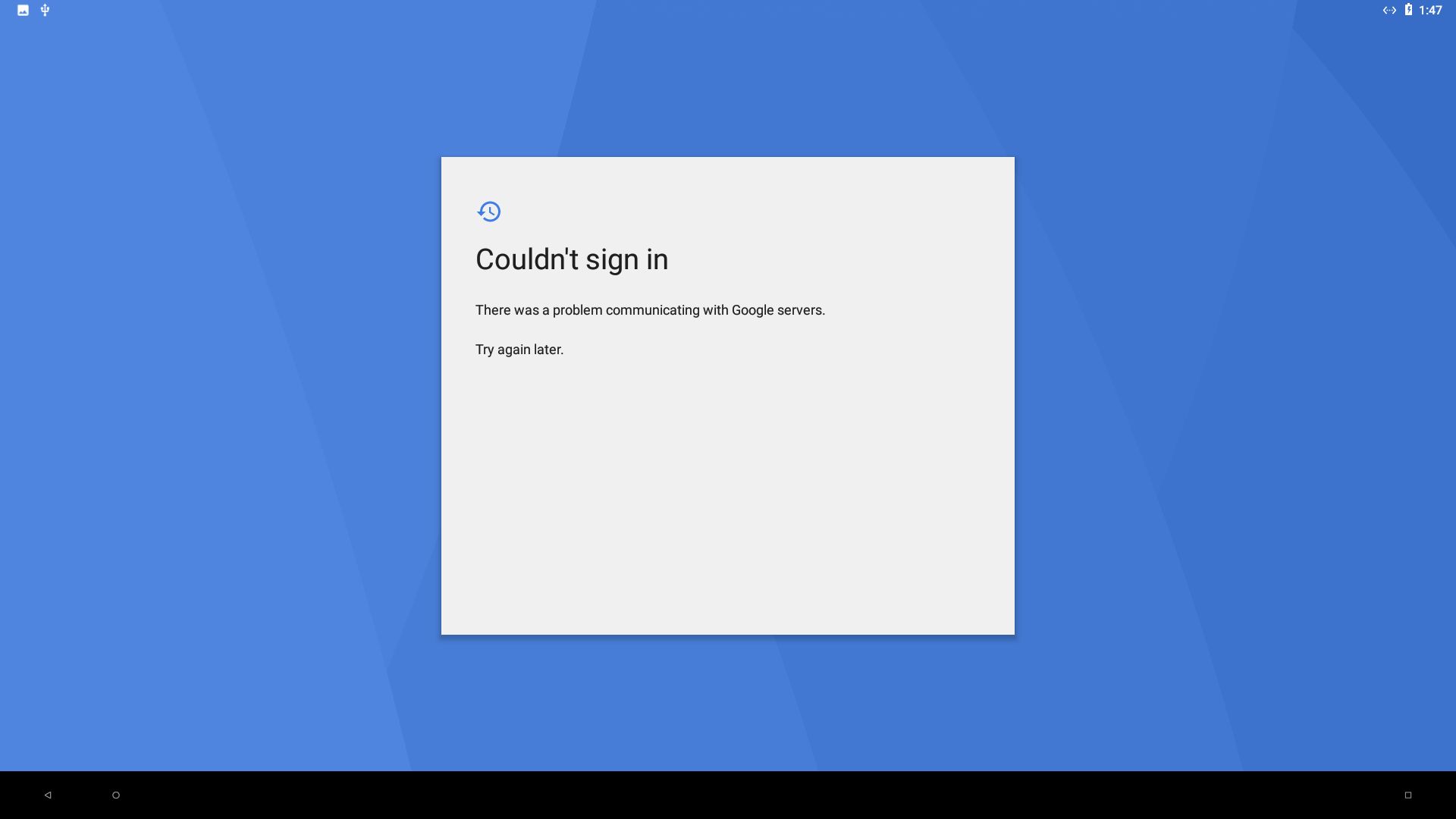
Google Play Store doesn’t work in AndEX Oreo 8.1 because you can’t sign in to Google. Aptoide App Manager is a good replacement though, since Google Play Services work. I.e. you can install Google apps via Aptoide. If you want to install AndEX Oreo 8.1 to hard drive you’ll have to do it manually. Please read my INSTRUCTION.

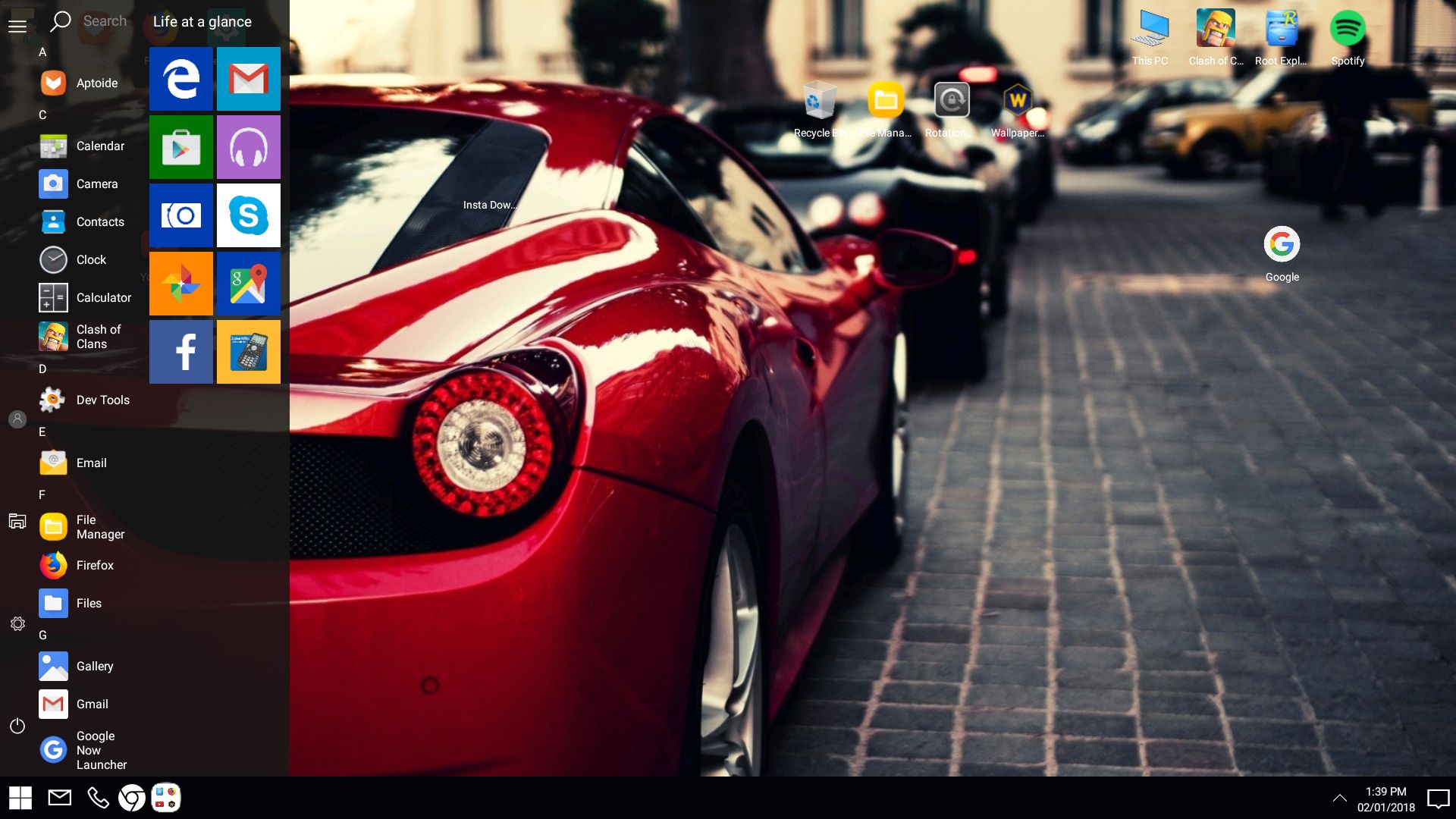
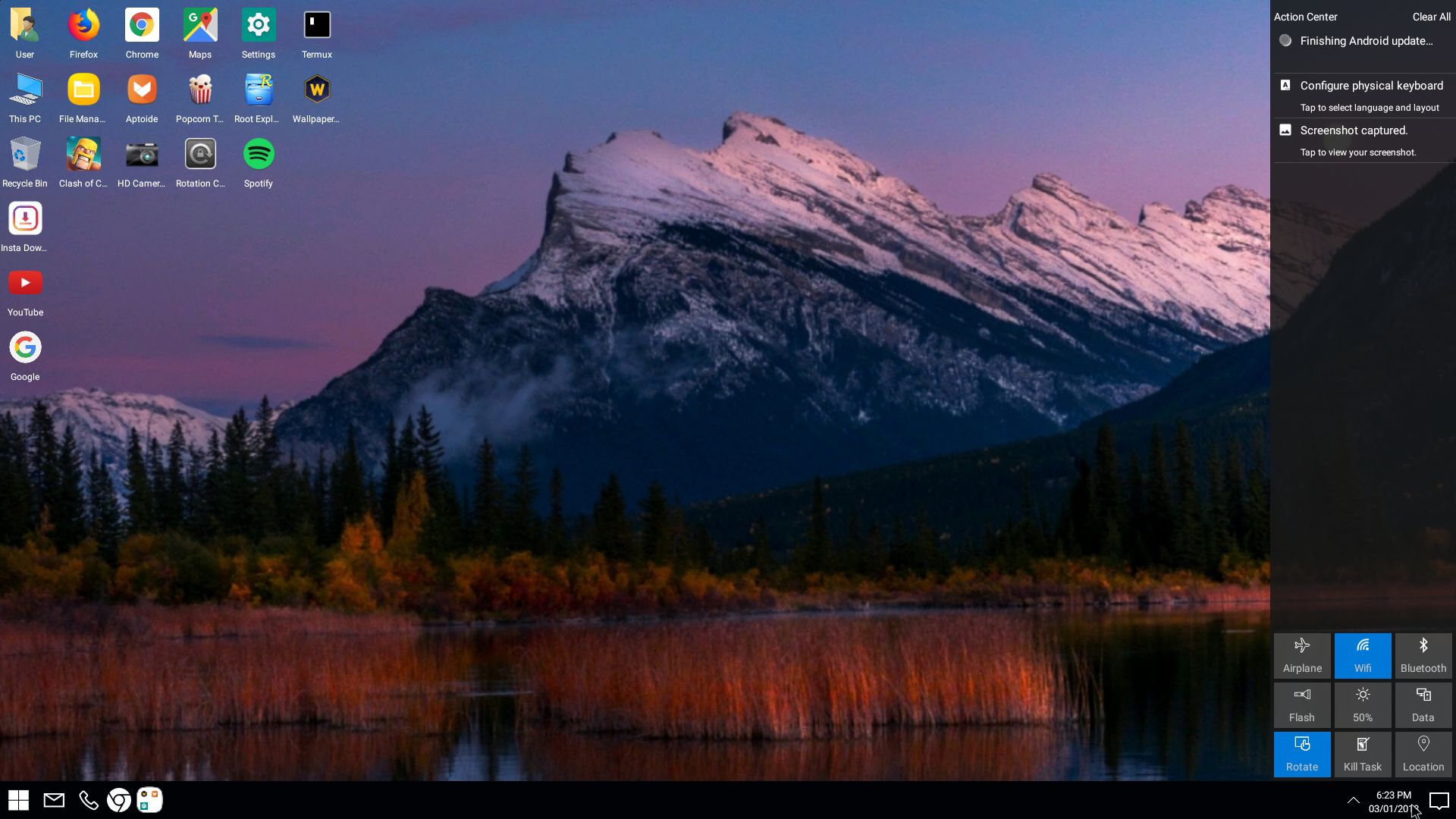
Screenshot – AndEX Build 180103 – the Desktop with Win 10 Launcher for Android 8.1 Oreo

MORE NEWS 180103: AndEX – Oreo 8.1 with kernel 4.9.54-exton-android-x86_64 and GAPPS

My new build of Android-x86_64 Oreo 8.1 have GAPPS pre-installed. I.e. Google Play Services, Google Play Store 8.5.39.W-all, Aptoide App Manager 8.6.02, Google Play Games, Gmail and YouTube 12.45.56. Also many other apps. For example: Spotify 8.4.31.723, File Manager 2.2.0.199, Firefox 57.0.1, Google Chrome 63.0.32, Clash of Clans 9.434.4 and Popcorn Time 2.8.0.2.

Android Oreo 8.1 was released 171205.

What’s the point?
Well, if you like your Android phone and all the apps you have installed on it I’m sure you will also like to run apps from your laptop. Bigger screen and better sound etc.Also: In AndEX Oreo Build 180103 almost all apps and games can be installed NOT via Google Play Store, but via Aptoide App Manager. You can even install very big games (of 1GB or so), but unfortunately almost all such games need a touchscreen. Still not convinced? Then read my article about “How useful an Androx-x86 system can be for the average computer user“.

Screenshots
Screenshot 1 – AndEX Oreo 8.1 Desktop with Win 10 Launcher
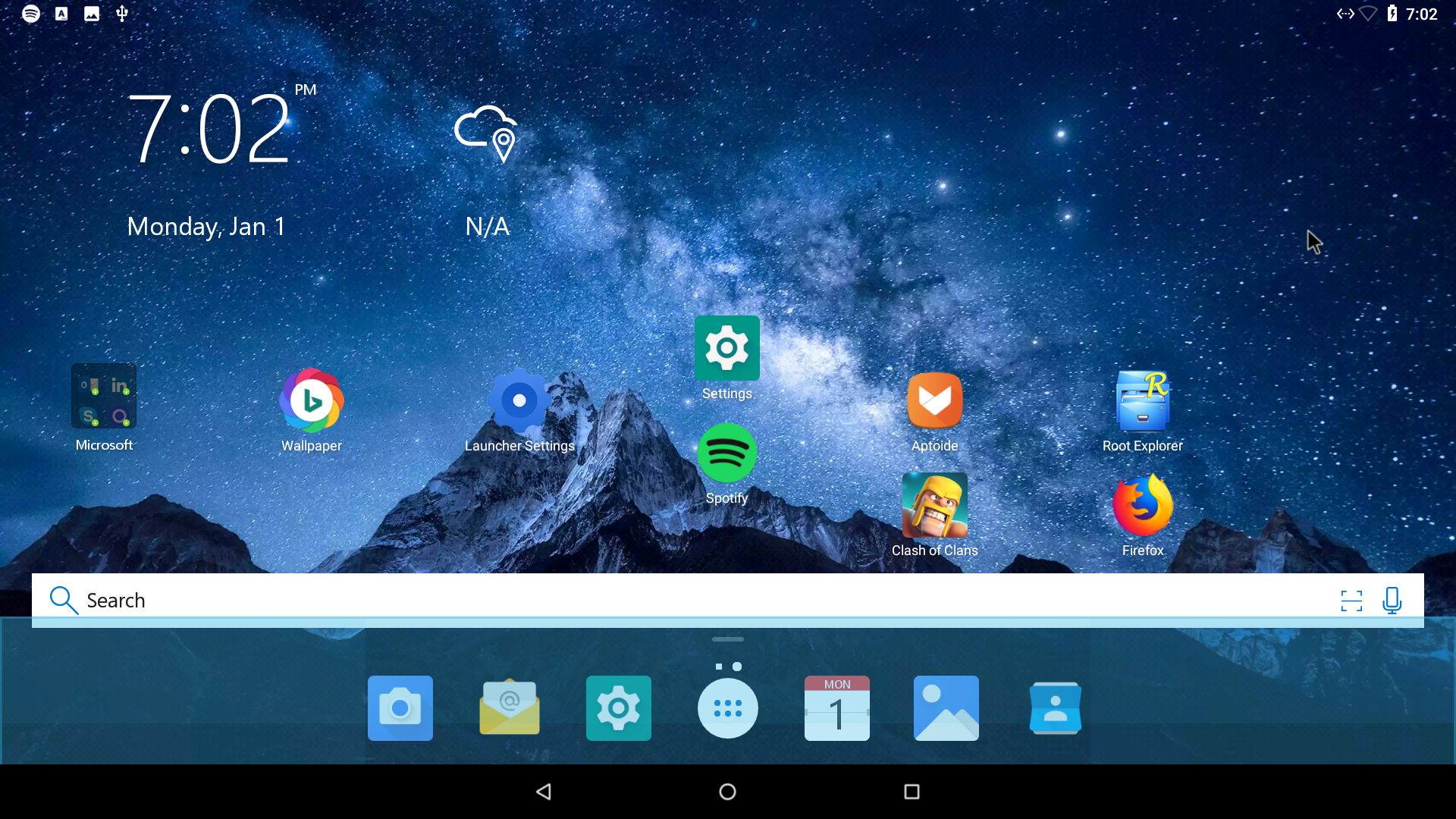
Screenshot 2 – AndEX Oreo 8.1 Desktop with Microsoft Launcher
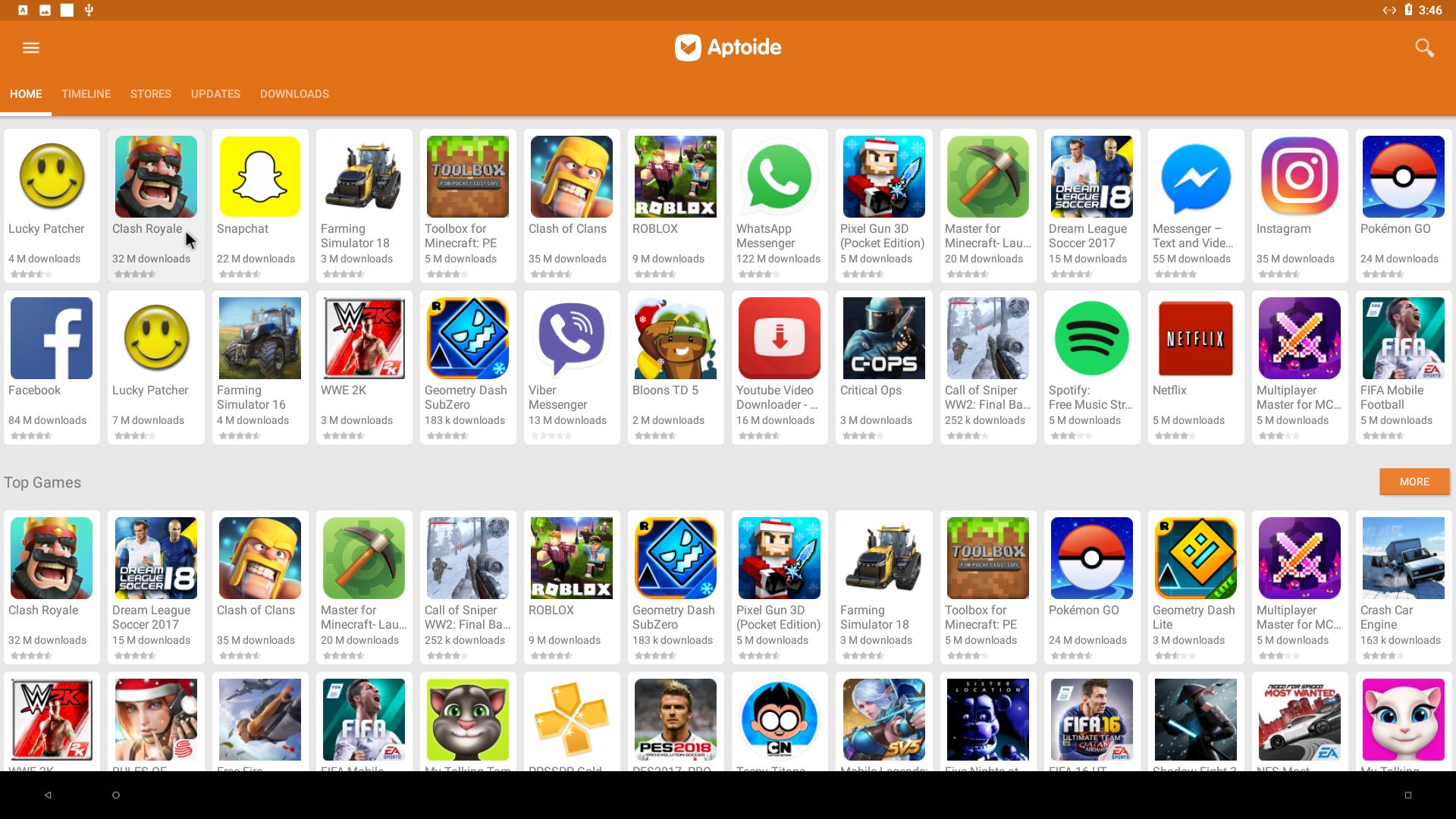
Screenshot 3 – AndEX Oreo 8.1 – Aptoide App Manager running
Screenshot 4 – AndEX Oreo 8.1 – Boot animation
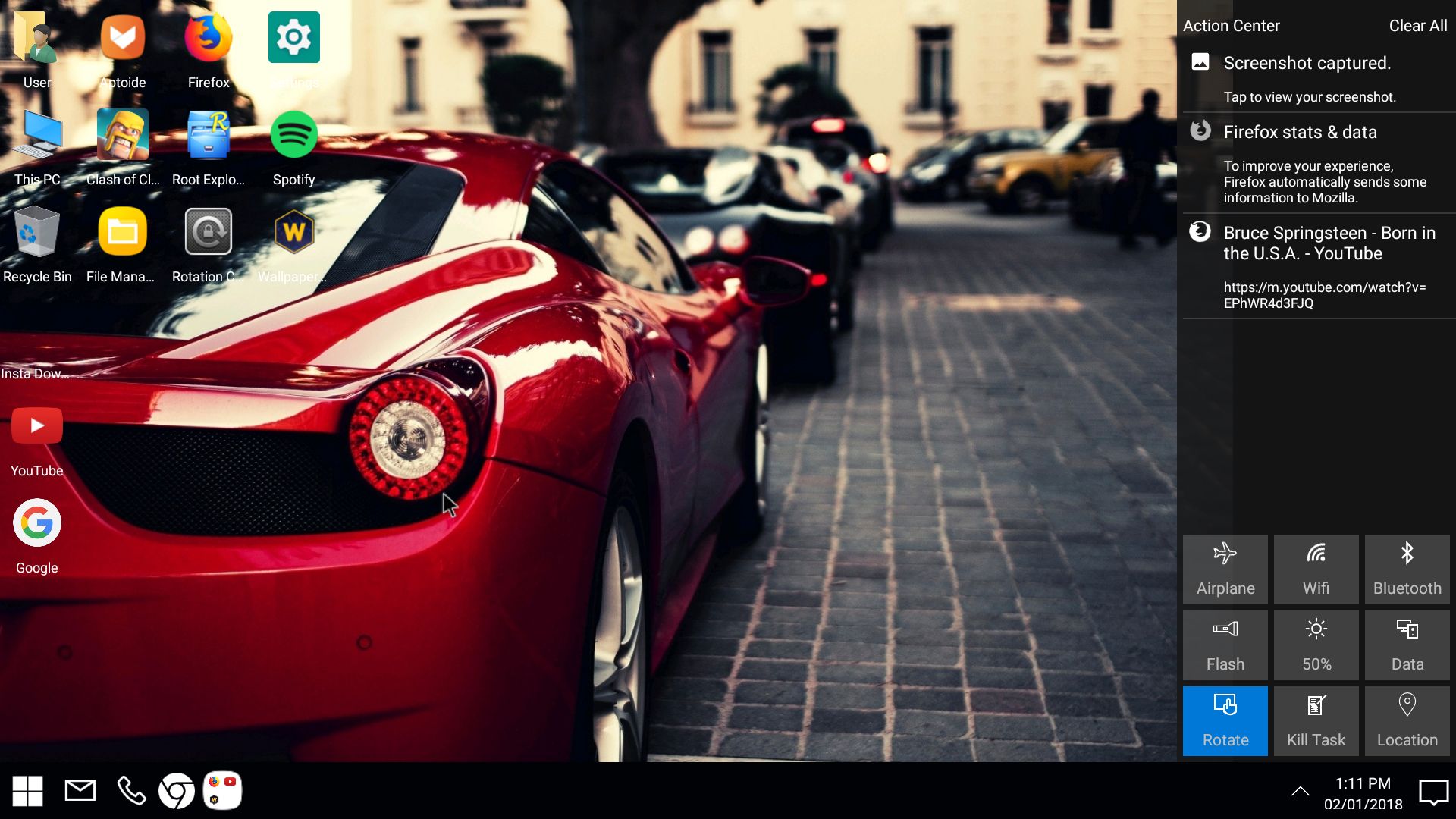
Screenshot 5 – AndEX Oreo 8.1 – Desktop with Win 10 Launcher
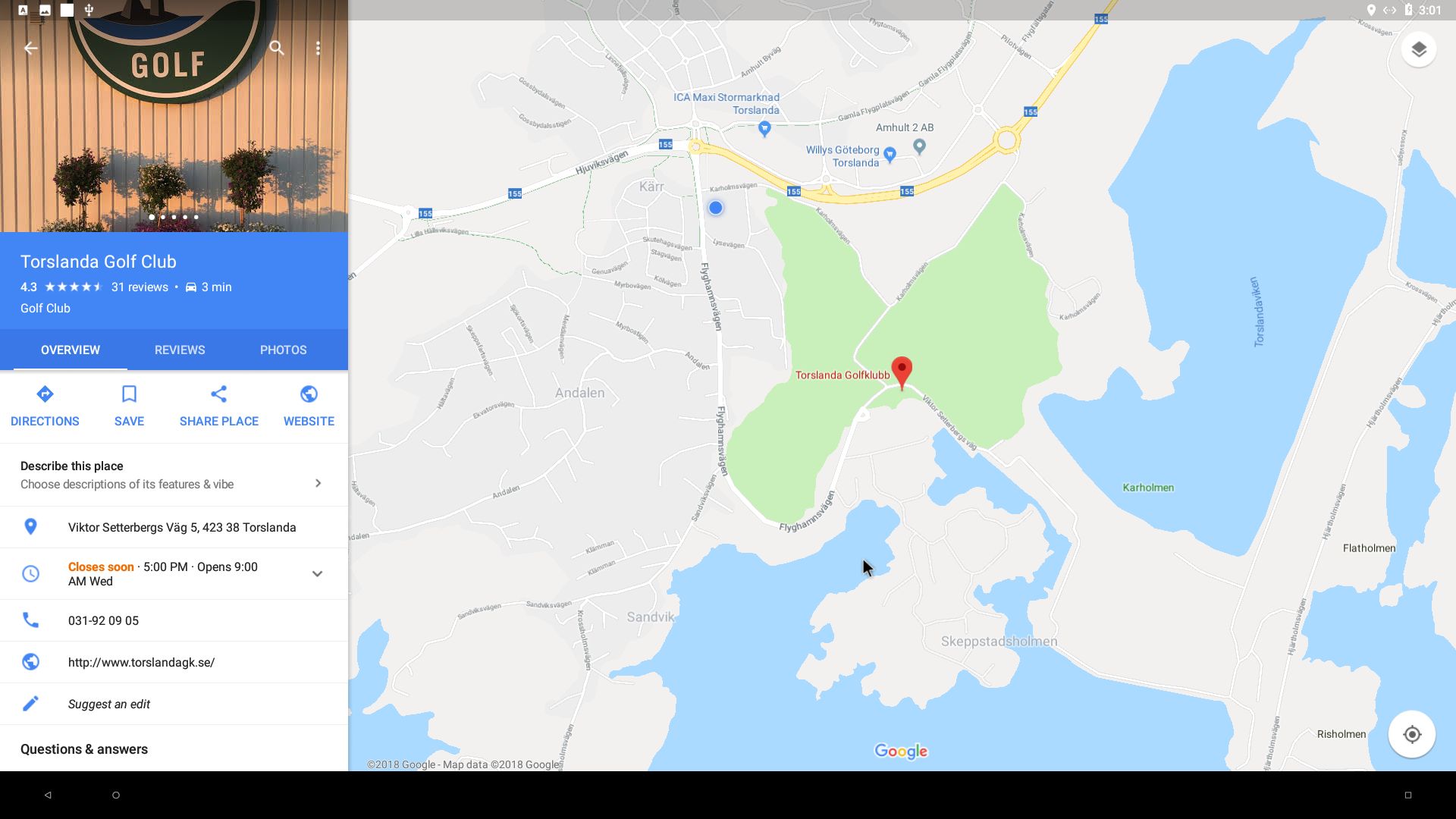
Screenshot 6 – AndEX Oreo 8.1 – AndEX Oreo running Google Maps
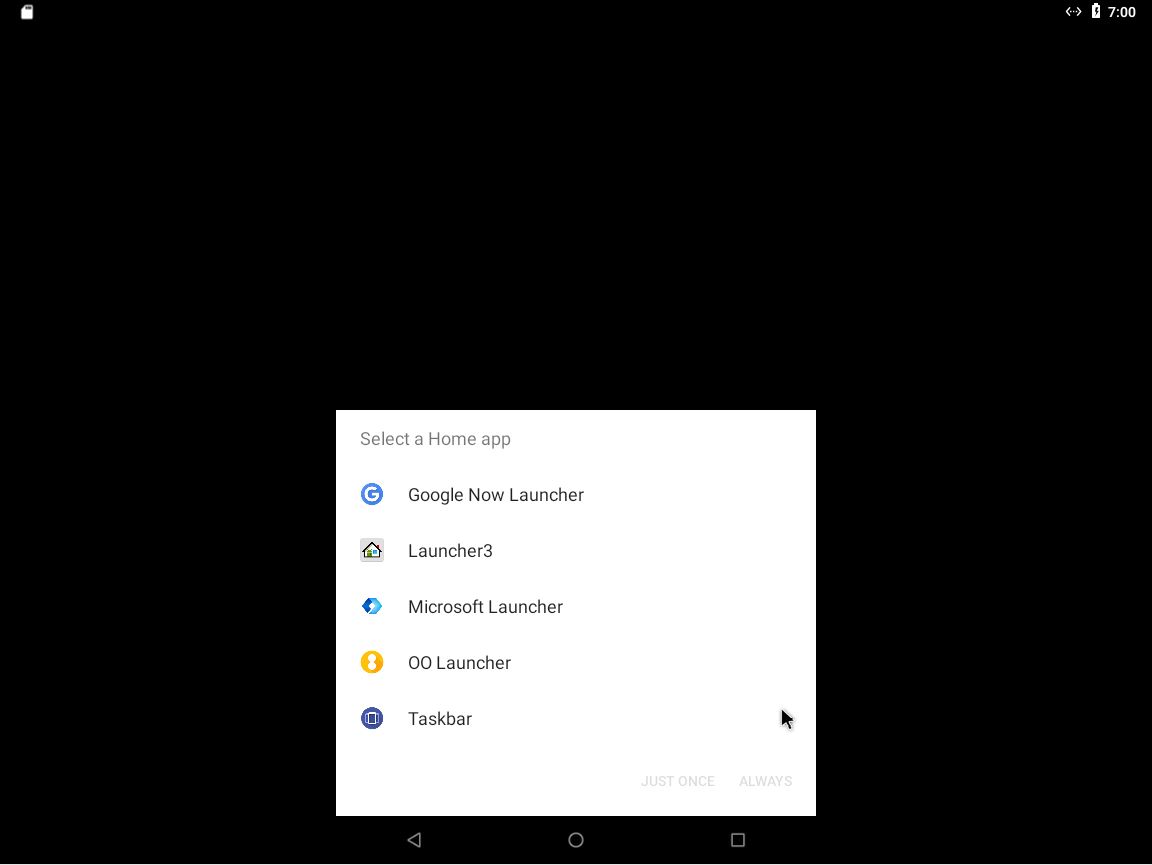
Screenshot 7 – AndEX Oreo 8.1 – AndEX Oreo first screen after boot – choose launcher

READ MORE…

1 Comment AndroidextonExton Linux SystemsLinux