Tag: runs from RAM

MeX 64 bit Linux based on upcoming Ubuntu 26.04 LTS with GNOME 50 and Kodi 21.1 Omega :: Build 260331

ABOUT MeX Linux 260331
I’ve uploaded a new version of MeX, in which I’ve included Kodi Omega 21.1. Kodi is an award-winning free and open source (GPL) software media player and entertainment hub that can be installed on Linux, OSX, Windows, iOS, tvOS and Android. It is designed around a “10-foot user interface” for use with televisions and remote controls. NOTE about Kodi: I have installed Kodi 21.1 using Flatpak. Kodi from the Ubuntu repositories does not work in Ubuntu 26.04. Kodi 21.1 runs very well in MeX. On a web site called FireStickTricks you can find instructions how to install 30 (?!) extra Kodi Builds with their own repositories and skins. The article is called Best Kodi Builds for 2026. I’ve tried Scrubs today. Works very well. Read about how to install Scrubs V2. Otherwise MeX version 260331 works in the same way as previous versions.
NOTE about Ubuntu 26.04 LTS: 
It will be released in a stable version 260423 and supported until April, 2031.
Extra Desktop Environments
Besides GNOME 50 (with Wayland) you can use the GNOME Flashback (Compiz) Desktop and the GNOME Flashback (Metacity) Desktop. Those DE’s are using X11 (Xorg) instead of Wayland.

NEWS/CHANGES 260331
Mex Linux is no longer based on Linux Mint. MeX Build 260331 is based only on Debian Sid and upcoming Ubuntu 26.04 LTS Resolute Raccoon. I have replaced the original kernel (7.0) with “my” special kernel 7.0.0-rc5-amd64-exton. All installed packages in MeX Linux have been upgraded to the latest version by 260331. This version of MeX uses the GNOME Desktop. I.e. GNOME 50 Tokyo and Kodi 21.1. You can run Kodi “windowed” while logged in to Gnome. The very nice icon theme Papirus is installed and used. Everything works inside Kodi. Even YouTube. (It can be a bit tricky to create an API key and OAuth credentials). Many (most) Kodi addons can’t run without YouTube.

Program content etc
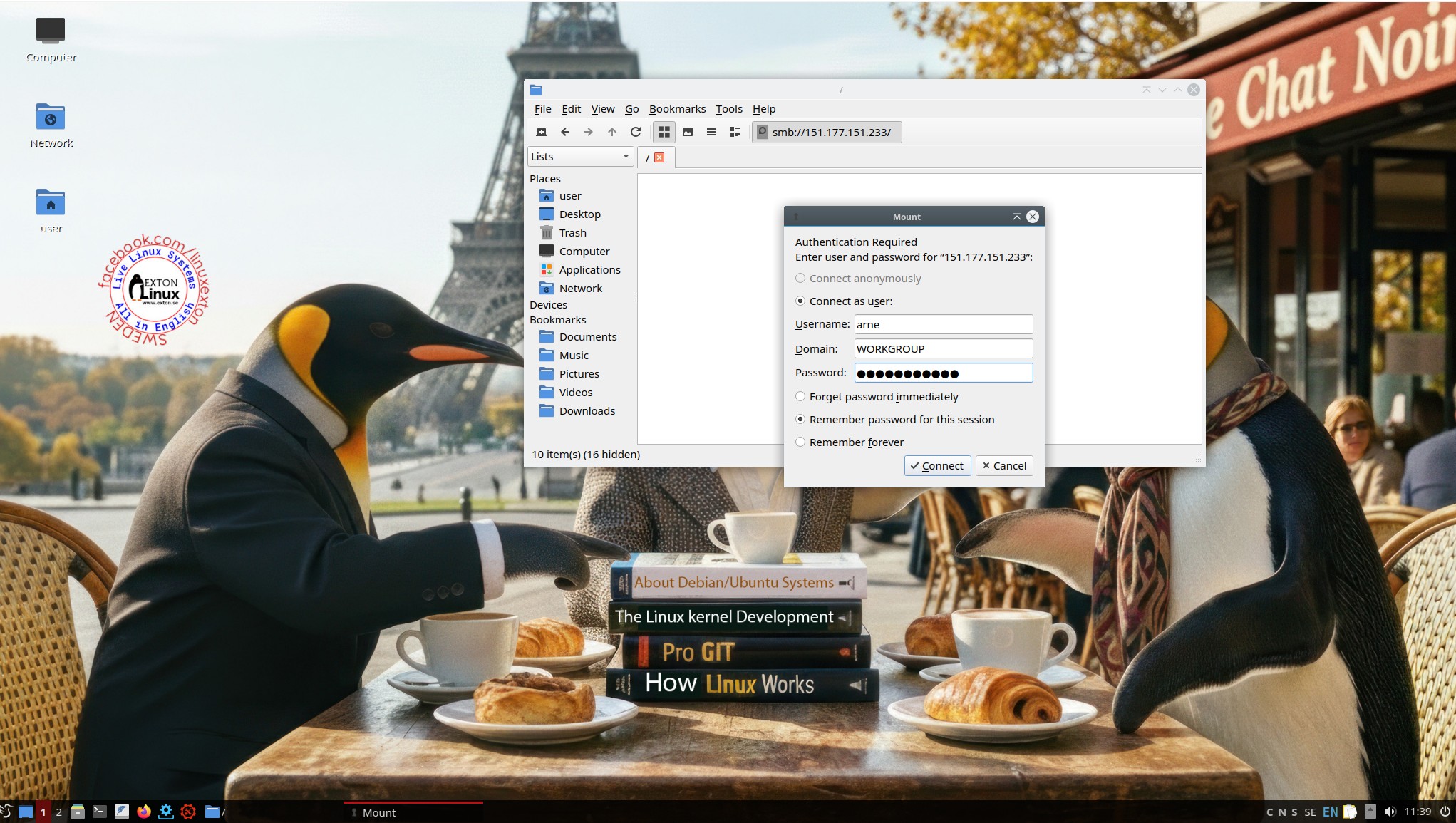
To make it possible to run MeX from RAM I have kept down the number of installed packages. The MeX ISO file is of 3490 MB. All packages have been updated to the latest available stable version as of March 31, 2026. See a complete list of all installed packages.

Used KERNEL 
Kernel 7.0.0-rc5-amd64-exton

SCREENSHOTS
Screenshot 1 – Calamares Installer running
Screenshot 2 – The user Desktop using GNOME 50
Screenshot 3 – The user Desktop using the GNOME Flashback (Compiz) Desktop
Screenshot 4 – Showing a WiFi connection
Screenshot 5 – Showing some Kodi addons
Screenshot 6 – Showing some other Kodi pre-installed addons
Screenshot 7 – MeX GDM3 login Screen

READ MORE…

Read about my Android-x86 Systems – 11, 10, Pie, Oreo, Nougat, Marshmallow, Lollipop and KitKat at andex.exton.net – latest is AndEX 11 (with GAPPS), AndEX 10 (with GAPPS) and AndEX Pie 9.0 (also with GAPPS)!
and
about my Android 16, 15, 14, 13, 12, 11, 10, Pie, Oreo, Nougat, Marshmallow and Lollipop versions for Raspberry Pi 5, Pi 4 and  Pi 3/2 at raspex.exton.se – latest is RaspAnd 16 (with GAPPS), RaspAnd 15 (also with GAPPS), RaspAnd 14 (also with GAPPS), 13 and 12 (without GAPPS), RaspAnd 11 (with GAPPS) and RaspAnd Oreo 8.1 (also with GAPPS)
No Comments extonExton Linux Systems

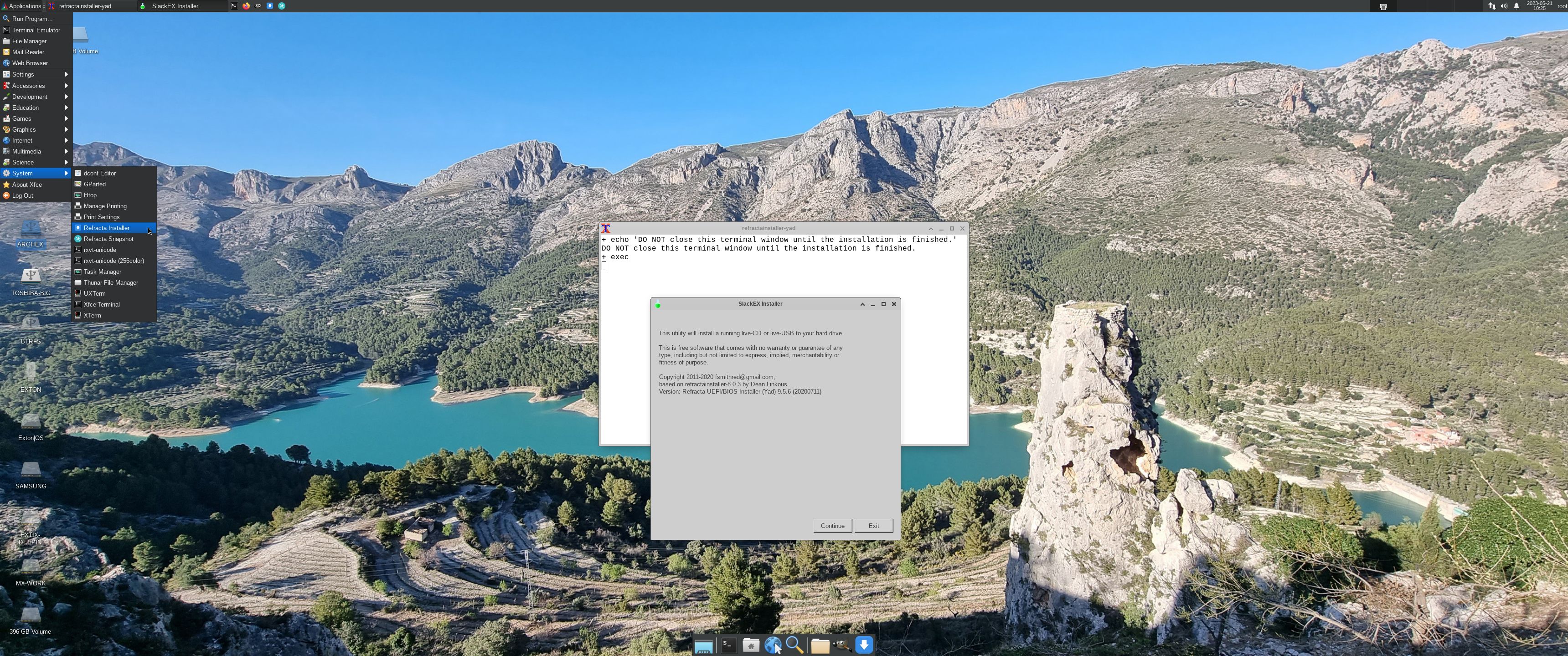
Run latest Slackware 64 bit live and create your own live installable Slackware system with Refracta Snapshot! :: Build 260325

About SlackEX 15.0 Current (testing/development) 64 bit Build 260325
Slackware is the first widely-used Linux system, which is still developing. Slackware has existed since 1993. In comparison with for example Ubuntu and Linux Mint, many people believe that Slackware is “difficult”. Any novice can quickly learn to use Ubuntu they say. My remaster of Slackware Current (15.0), which I call SlackEX 15.0 Current 64 bit Linux Live System, is however just as easy to use as Ubuntu and/or Linux Mint. Some tend to complain that the Program Management in Slackware is awkward. That was perhaps earlier the case, but not anymore.

NEWS ABOUT SlackEX BUILD 260325 with the Xfce4 DESKTOP (DE)
A new version of SlackEX is ready. It is based on Slackware 15.0 Stable/Current released 220202 with Xfce4 as DE. The most important package installed is Refracta Snapshot. With that you can build your own Slackware 15.0 distribution. Xfce4 is one of Slackware’s official Desktop environments. The other one is KDE. Kernel 6.19.8-amd64-exton is used in this SlackEX Build. To be able to use Refracta Snapshot you’ll have to use said kernel. Otherwise you can (of course) replace “my” kernel with Slackware’s original kernel. Study the list of upgraded packages.
NOTE1: You’ll run SlackEX Build 260325 as the normal user user or as root. The password for root is root. The password for user is live.
NOTE2: You can run SlackEX Build 260325 on UEFI and non-Uefi computers.

ABOUT running SlackEX in RAM
You can run SlackEX from RAM also when starting SlackEX in UEFI mode. The previous SlackEX versions could only run from RAM if they started in Legacy mode. So my advice is to run this version SUPER FAST from RAM! The best way to run a Linux Live System! When SlackEX has booted up you can remove/eject the USB stick or the DVD.

SCREENSHOTS
Screenshot 1 – user’s Desktop – Xfce4
Screenshot 2 – root’s Desktop – Xfce4
Screenshot 3 – using Refracta Installer – keeping the user account
Screenshot 4 – using Refracta Installer – installing Grub in VirtualBox
Screenshot 5 – Refracta Snapshot is starting

Why Slackware?
Slackware is grossly underestimated (in my opinion).

READ MORE…

Read about my Android-x86 Systems – 11, 10, Pie, Oreo, Nougat, Marshmallow, Lollipop and KitKat at andex.exton.net – latest is AndEX 11 (with GAPPS), AndEX 10 (with GAPPS) and AndEX Pie 9.0 (also with GAPPS)!
and
about my Android 16, 15, 14, 13, 12, 11, 10, Pie, Oreo, Nougat, Marshmallow and Lollipop versions for Raspberry Pi 5, Pi 4 and  Pi 3/2 at raspex.exton.se – latest is RaspAnd 16 (with GAPPS), RaspAnd 15 (also with GAPPS), RaspAnd 14 (also with GAPPS), 13 and 12 (without GAPPS), RaspAnd 11 (with GAPPS) and RaspAnd Oreo 8.1 (also with GAPPS)

Follow me on Facebook…

No Comments extonExton Linux Systems

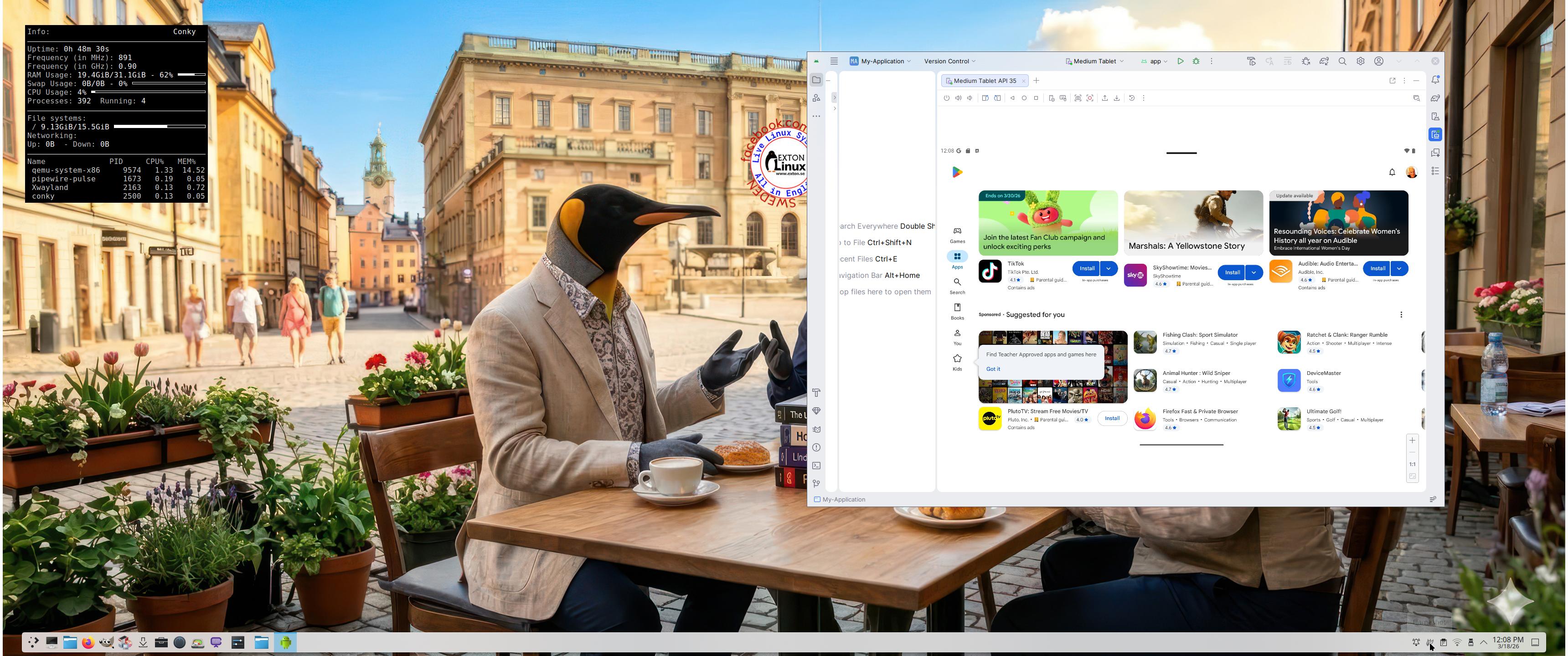
Exton|OS 64 bit – based on upcoming Ubuntu 26.04 LTS – with KDE Plasma 4:6.6.2, Android Studio with an excellent Android Emulator and Refracta Snapshot :: Build 260319

NEWS 260319 ABOUT Exton|OS with KDE Plasma Desktop, Android Studio and Refracta Snapshot
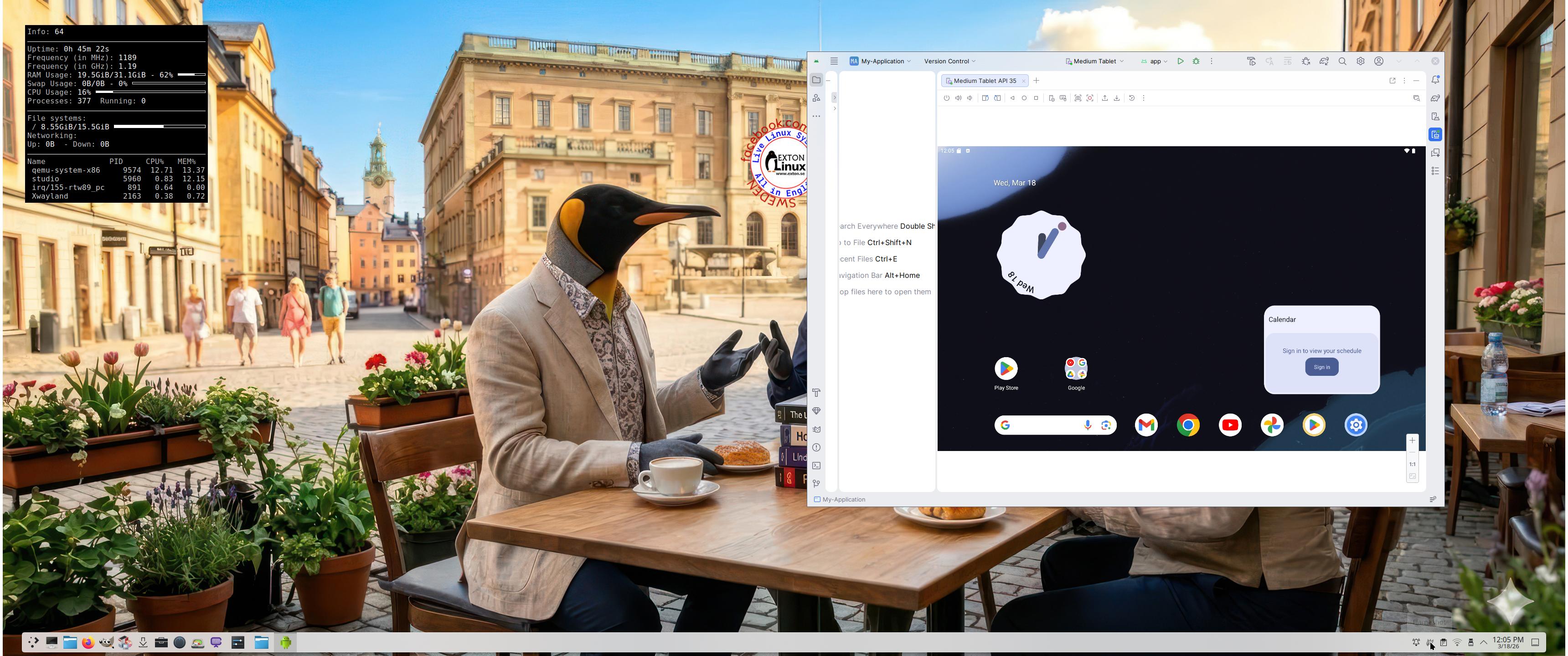
The Desktop Environment in this Exton|OS build is KDE Plasma 4:6.6.2. Plasma is made to stay out of the way as it helps you get things done. But under its light and intuitive surface, it’s a powerhouse. So you’re free to choose ways of usage right as you need them and when you need them. Program content in build 260319: Most important are Refracta Snapshot and Android Studio Panda 2 with an excellent Android Emulator. You can run several Android systems directly in Exton|OS. Also with GAPPS (Google Play Services and Google Play Store) pre-installed. Watch a screenshot when Android 15 is running with Google Play Store enabled. Other pre-installed programs are Firefox, VLC, Gimp and GParted. Also all necessary additions in order to install programs from source. Kernel 6.19.8-amd64-exton-os is used. All packages have been updated to the latest available version as at March 19, 2026. Study the NEW PACKAGE list. Google Chrome has been removed since it’s now possible to use Netflix in Firefox. Using Refracta Snapshot you can change everything to your liking and then create your own live installable Ubuntu 26.04 LTS Resolute Raccon system with Android Studio included. I mean create your own installable Ubuntu 26.04 LTS Live System once you have installed Exton|OS to hard drive. Ubuntu 26.04 LTS will be released in a stable version 260423. Ubuntu 26.04 LTS will be supported until June, 2031…

IMPORTANT ABOUT Refracta Snapshot
Refracta Snapshot is pre-installed in Exton|OS Build 260319. Use it to create your own live installable Ubuntu system. I mean create your own installable Ubuntu 26.04 LTS Live DVD once you have installed Exton|OS to hard drive. I mean change everything and then create a whole new Ubuntu live system.

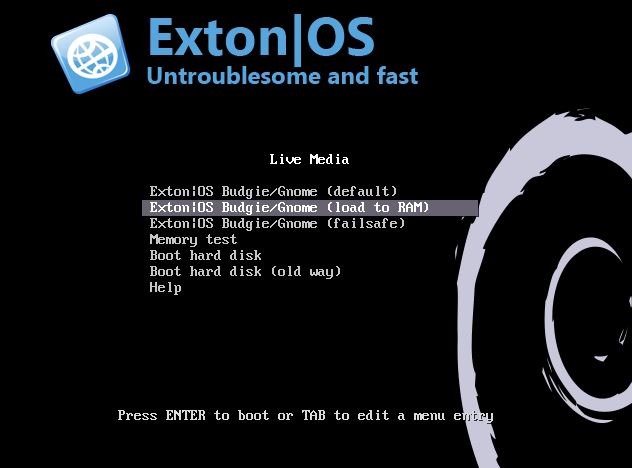
Runs from RAM
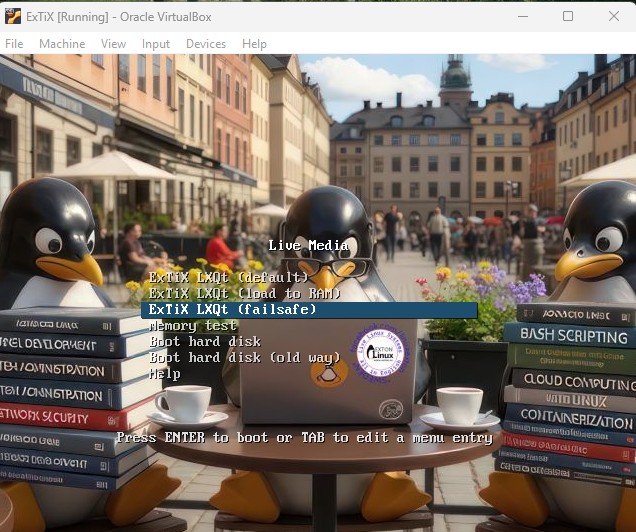
Another great thing is that Exton|OS can run from RAM. Use Boot alternative 2 (load to RAM). When the system has booted up you can remove the disc (DVD) or USB stick.

SCREENSHOTS
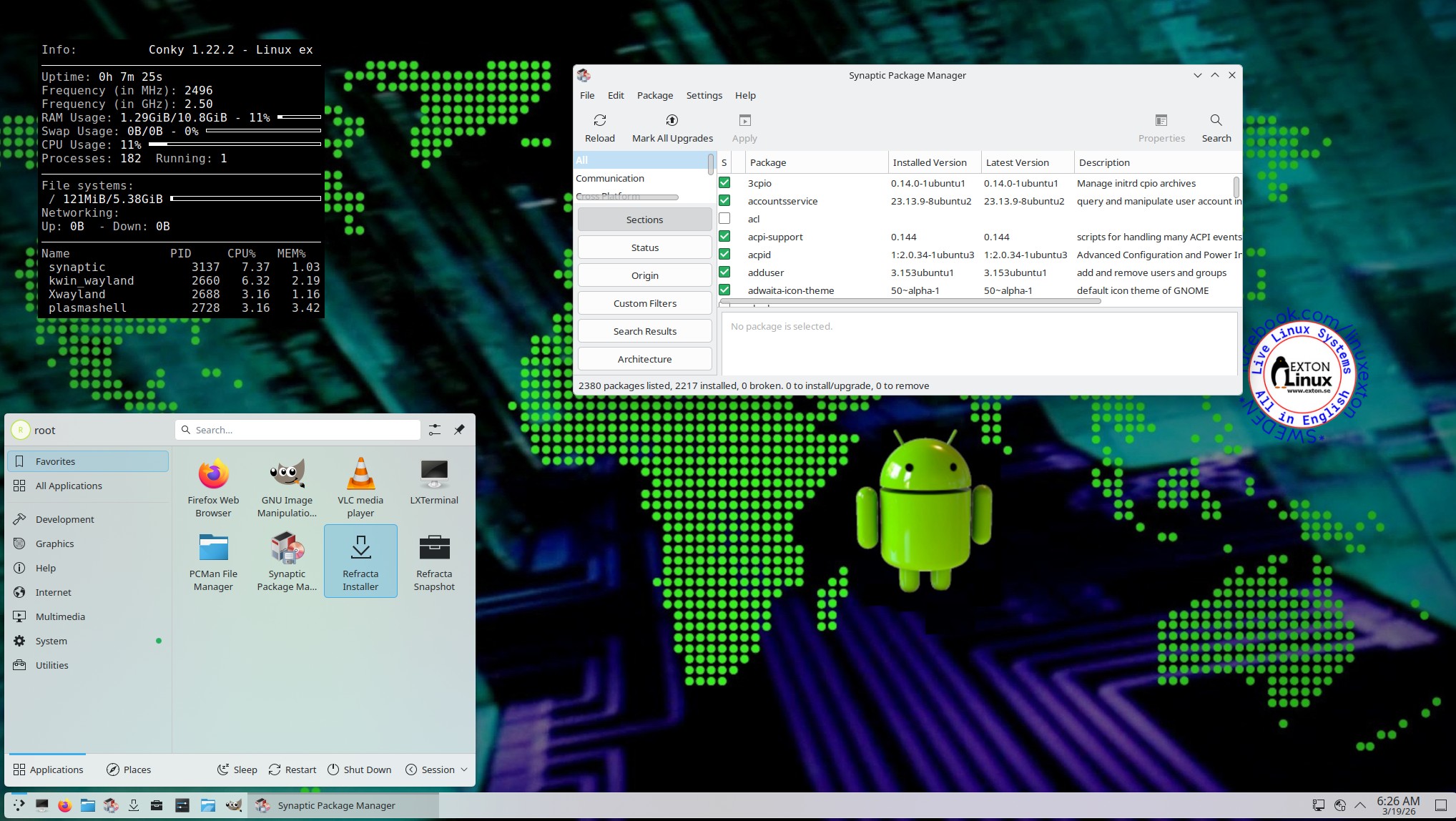
Screenshot 1 – Exton|OS’s KDE Plasma Desktop with Android Studio running
Screenshot 2 – Running an AVD with Google Play Store included
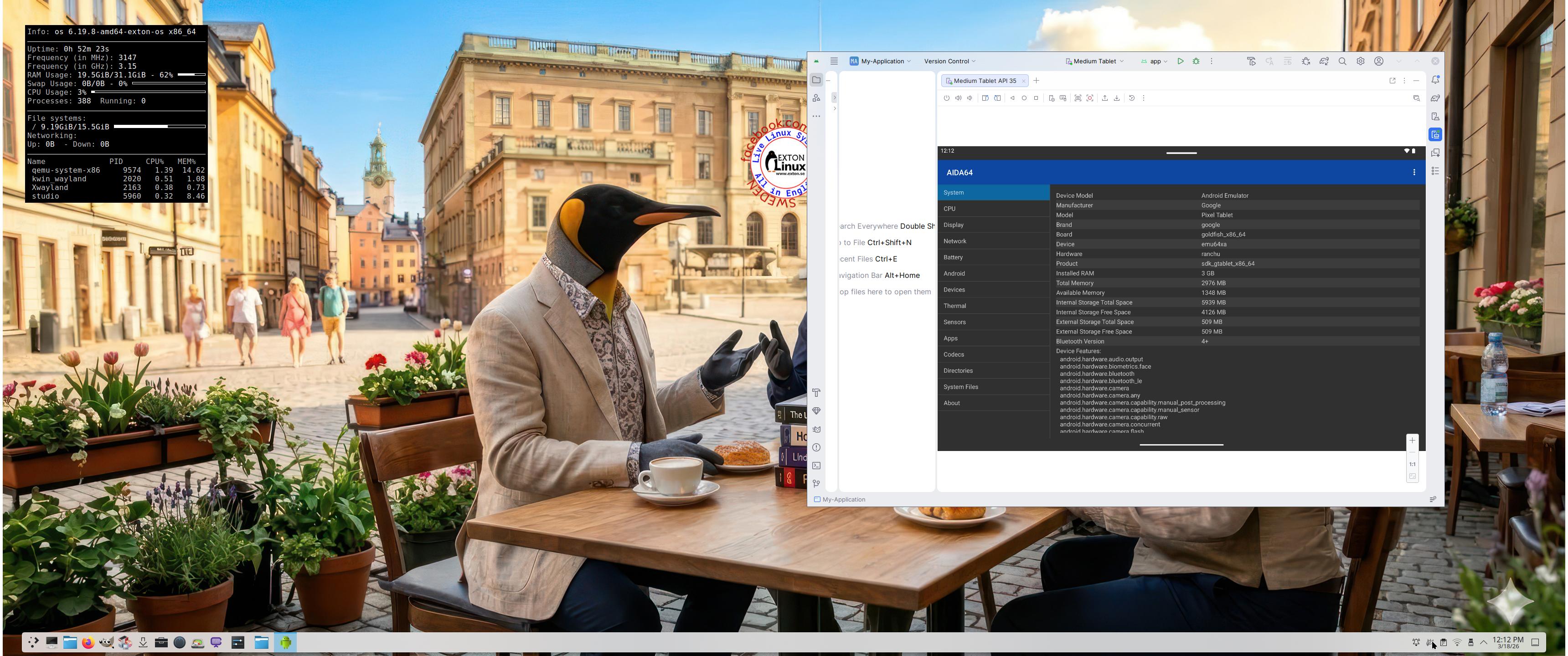
Screenshot 3 – Running AIDA64 in an AVD
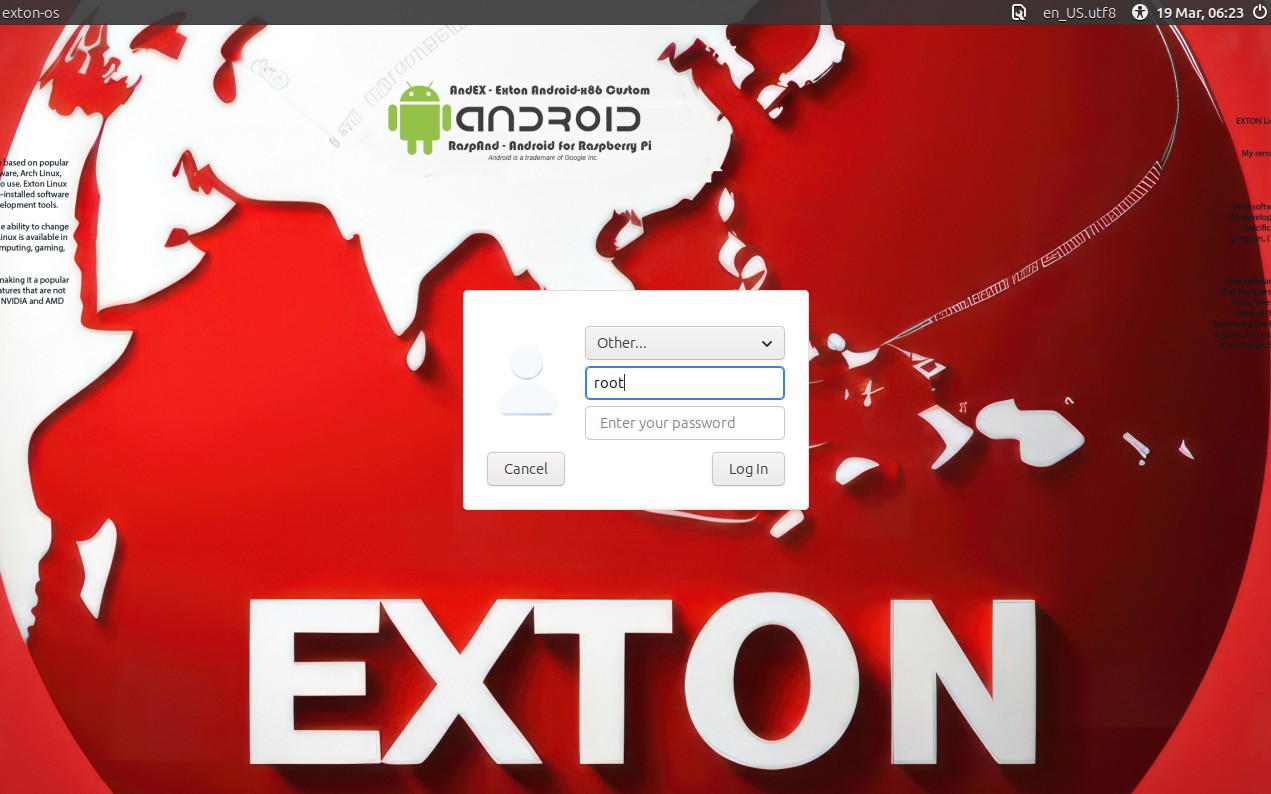
Screenshot 4 – LightDM login screen
Screenshot 5 – The Desktop for root 260319

READ MORE…

Read about my Android-x86 Systems – 11, 10, Pie, Oreo, Nougat, Marshmallow, Lollipop and KitKat at andex.exton.net – latest is AndEX 11 (with GAPPS), AndEX 10 (with GAPPS) and AndEX Pie 9.0 (also with GAPPS)!
and
about my Android 16, 15, 14, 13, 12, 11, 10, Pie, Oreo, Nougat, Marshmallow and Lollipop versions for Raspberry Pi 5, Pi 4 and  Pi 3/2 at raspex.exton.se – latest is RaspAnd 16 (with GAPPS), RaspAnd 15 (also with GAPPS), RaspAnd 14 (also with GAPPS), 13 and 12 (without GAPPS), RaspAnd 11 (with GAPPS) and RaspAnd Oreo 8.1 (also with GAPPS)
Follow me on Facebook…
No Comments AndroidextonExton Linux Systems

DebEX KDE Plasma based on Debian Forky (upcoming Debian 14) with Refracta Snapshot and Calamares Installer :: Build 260120

NEWS 260120 about DebEX KDE Plasma – a Refracta Build
I have made a new extra version of DebEX KDE Plasma Live System – efi. It’s a pure Debian Sid/Forky (upcoming Debian 14) System. There are no Ubuntu or Kubuntu elements involved in DebEX. DebEX KDE Plasma Sid uses the KDE Plasma Desktop 6.5.4 – latest version, released 251209 – as Desktop environment. Kernel 6.19.0-rc5-amd64-exton is used. All included packages have been updated to the latest version as of 260120.

VirtualBox Guest Additions and VMware Tools are pre-installed, which mean that you can run DebEX KDE in full screen – see the screenshots below.

MOST IMPORTANT CHANGES in DebEX KDE
A) I’ve installed the full KDE Plasma Desktop using the command sudo apt install task-kde-desktop. In order to save space I have removed LibreOffice with the command sudo apt remove libreoffice* B) I have added Calamares 3.3.14-1 Installer Framework. Now you can choose language when the installation starts. When it’s ready everything will be in your chosen language! You can even use Calamares in VirtualBox and VMware – i.e. non-efi computers without problems. It works very well!
NOTE: You can also use Refracta Installer. Preferably in VirtualBox/VMware. NOTE ALSO: When running DebEX KDE in VirtualBox you can do it in full screen since VirtualBox Guest Additions are pre-installed. Watch this screenshot.

THE REAL McCoy
DebEX is a pure Debian system. I.e. no traces of Ubuntu, Kubuntu etc. New releases of Ubuntu are always based on Debian Sid. So is DebEX.

ABOUT Debian “Forky” (upcoming Debian 14)
Forky is currently in a state of “testing“. You should therefore be a bit careful when using DebEX KDE Build 260120. Nevertheless apps won’t “crash” or anything like that (according to my experience). Debian Forky STABLE will be released next year.

SCREENSHOTS
1. The Desktop for the ordinary user user
2. Running in full screen in VirtualBox
3. Calamares Installer is ready
4. Ejecting the USB stick while running DebEX from RAM

READ MORE…

Read about my Android-x86 Systems – 11, 10, Pie, Oreo, Nougat, Marshmallow, Lollipop and KitKat at andex.exton.net – latest is AndEX 11 (with GAPPS), AndEX 10 (with GAPPS) and AndEX Pie 9.0 (also with GAPPS)!
and
about my Android 16, 15, 14, 13, 12, 11, 10, Pie, Oreo, Nougat, Marshmallow and Lollipop versions for Raspberry Pi 5, Pi 4 and  Pi 3/2 at raspex.exton.se – latest is RaspAnd 16 (with GAPPS), RaspAnd 15 (also with GAPPS), RaspAnd 14 (also with GAPPS), 13 and 12 (without GAPPS), RaspAnd 11 (with GAPPS) and RaspAnd Oreo 8.1 (also with GAPPS)!
Follow me on Facebook…
No Comments Exton Linux Systems

ArchEX (Arch Linux) BUILD 260108 with LXQt 2.3, Calamares Installer 3.4.0 and kernel 6.18.2-arch2-1

I’ve made a new extra version of ArchEX with the LXQt 2.3 Desktop Environment. LXQt 2.3 was released 251105 LXQt is a lightweight Qt desktop environment. It will not get in your way. It will not hang or slow down your system. It is focused on being a classic desktop with a modern look and feel. I’ve also managed to install Calamares Installer from source in ArchEX LXQt. It means that you can install ArchEX LXQt in any language. Everything will then be in your chosen language when the installation has completed.

RUNS from RAM
ArchEX LXQt runs LIVE from RAM. Super fast. When the System has booted up you can remove the USB stick or the DVD.

WAYLAND
Some people think that using Wayland in a Linux System is very important. Wayland is said to be “the modern, simpler, more secure replacement for the aging X11 display server, offering better performance”. You can install Wayland ArchEX LXQt to use it instead of the X11 display server. I “forgot” to do so. Just run the command sudo pacman -S lxqt-wayland-session labwc. You can do it also while running ArchEX live. Watch this screenshot.

Study all installed packages in ArchEX LXQt.

How To dual boot, triple boot or multi boot Linux with Windows in a simple way and be happy
Before installing ArchEX or any other Linux system my general installation instructions may be of interest.

WHO should run Arch Linux?

My answer: The system fits the “advanced” Linux user/enthusiast, who would be willing to run an occasional command from time to time.

BENEFITS of ArchEX/Arch Linux
“Cutting Edge”-software and speed. You will for example always run the latest kernel if you upgrade ArchEX/Arch (for example) every month.

SCREENSHOTS
1. The LXQt Desktop for the ordinary user user
2. Calamares Installer is running
3. Showing a WiFi connection
4. The LightDM Login Screen
5. Running in full screen in VirtualBox
6. The Desktop for root
7. Showing a Samba connection

READ MORE…

Read about my Android-x86 Systems – 11, 10, Pie, Oreo, Nougat, Marshmallow, Lollipop and KitKat at andex.exton.net – latest is AndEX 11 (with GAPPS), AndEX 10 (with GAPPS) and AndEX Pie 9.0 (also with GAPPS)!
and
about my Android 16, 15, 14, 13, 12, 11, 10, Pie, Oreo, Nougat, Marshmallow and Lollipop versions for Raspberry Pi 5, Pi 4 and  Pi 3/2 at raspex.exton.se – latest is RaspAnd 16 (with GAPPS), RaspAnd 15 (also with GAPPS), RaspAnd 14 (also with GAPPS), 13 and 12 (without GAPPS), RaspAnd 11 (with GAPPS) and RaspAnd Oreo 8.1 (also with GAPPS)!
Follow me on Facebook…
No Comments Exton Linux Systems

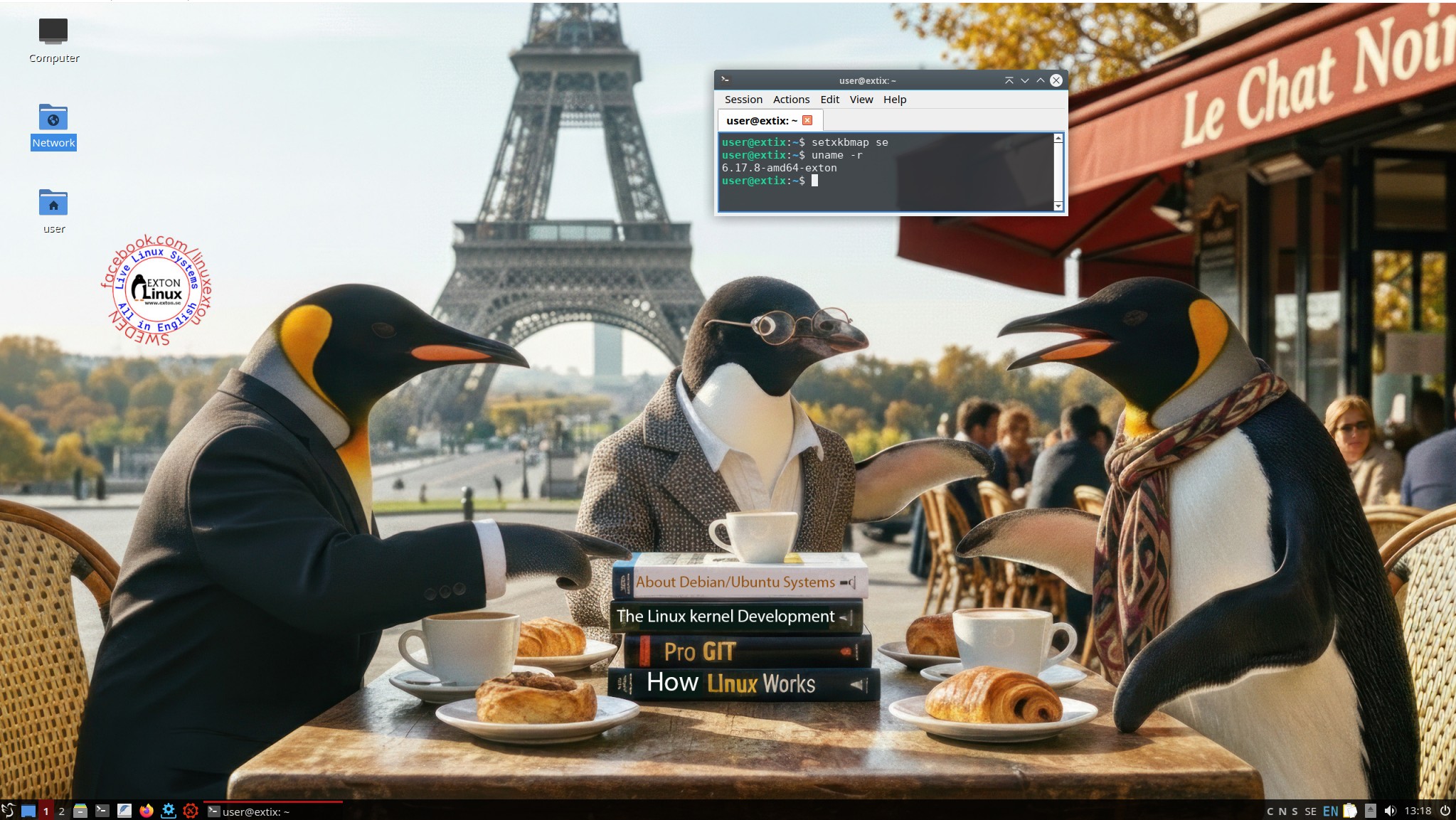
ExTiX 25.12 – a live remix of upcoming Ubuntu 26.04 LTS – with LXQt 2.2, Refracta Snapshot, Calamares and kernel 6.17.8-amd64-exton ::: Build 251201

ExTiX 25.12 LXQt – Build 251201
I have made a new version of ExTiX – The Ultimate Linux System. I call it ExTiX 25.12 LXQt Live System. (The previous LXQt version was 24.12 from 241223). ExTiX 25.12 is a very premature remix of Ubuntu 26.04 LTS (Resolute Raccoon). Ubuntu 26.04 LTS will be supported until July 2031.

FEATURES
The best thing with ExTiX 25.12 is that while running the system live (from DVD/USB) or from hard drive you can use Refracta Snapshot (pre-installed) to create your own live installable Ubuntu system. So easy that a ten year child can do it! One other very good thing with this version of ExTiX is that it is quite light. The ISO file is of only 2440 MB, which means that you can run the system super fast from RAM. When the boot process is ready you can eject the DVD or USB stick. Use Boot alternative 2 or Advanced options… >> load to RAM.

Study all pre-installed packages in ExTiX 25.12…

ABOUT BUILD 251201
ExTiX 25.12
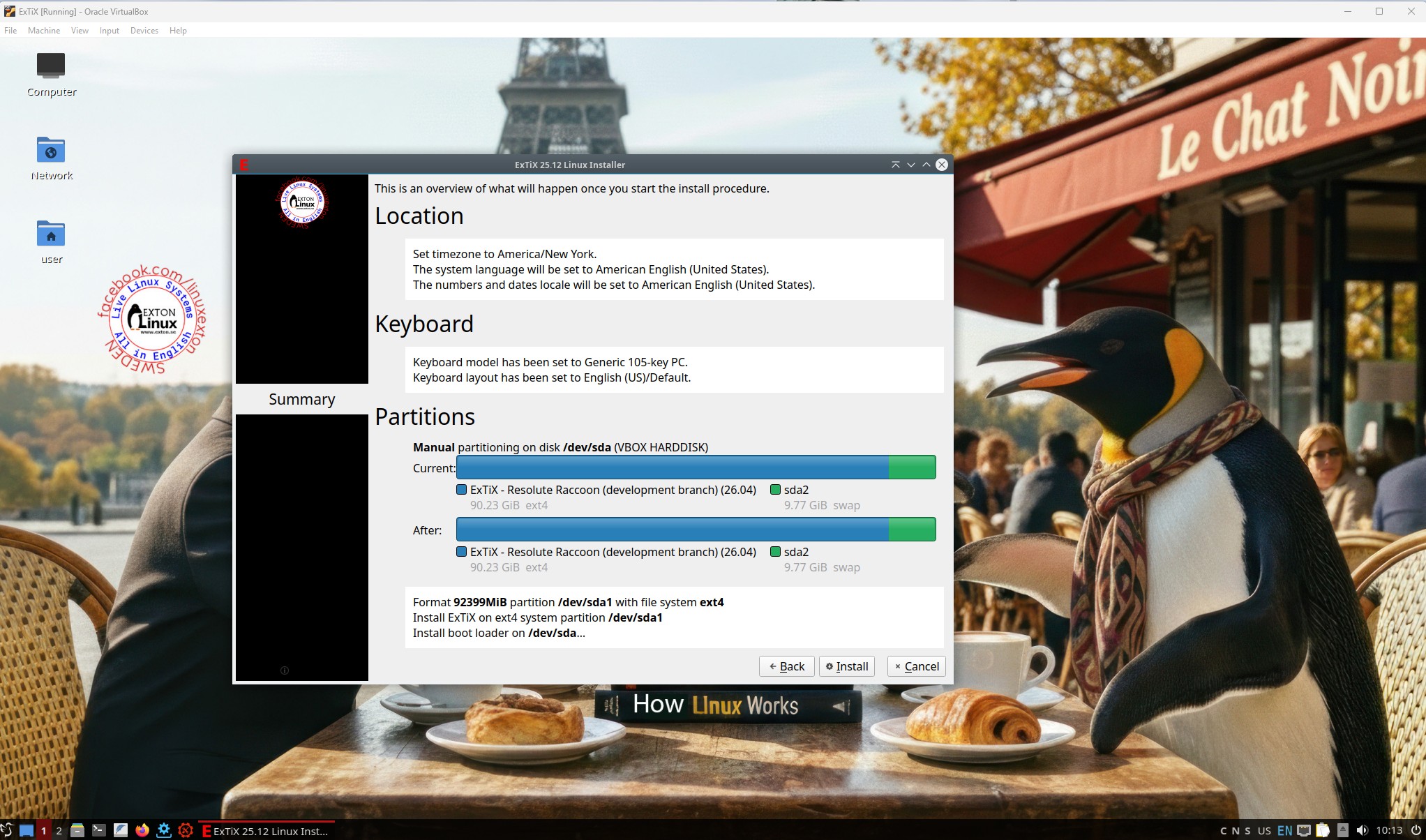
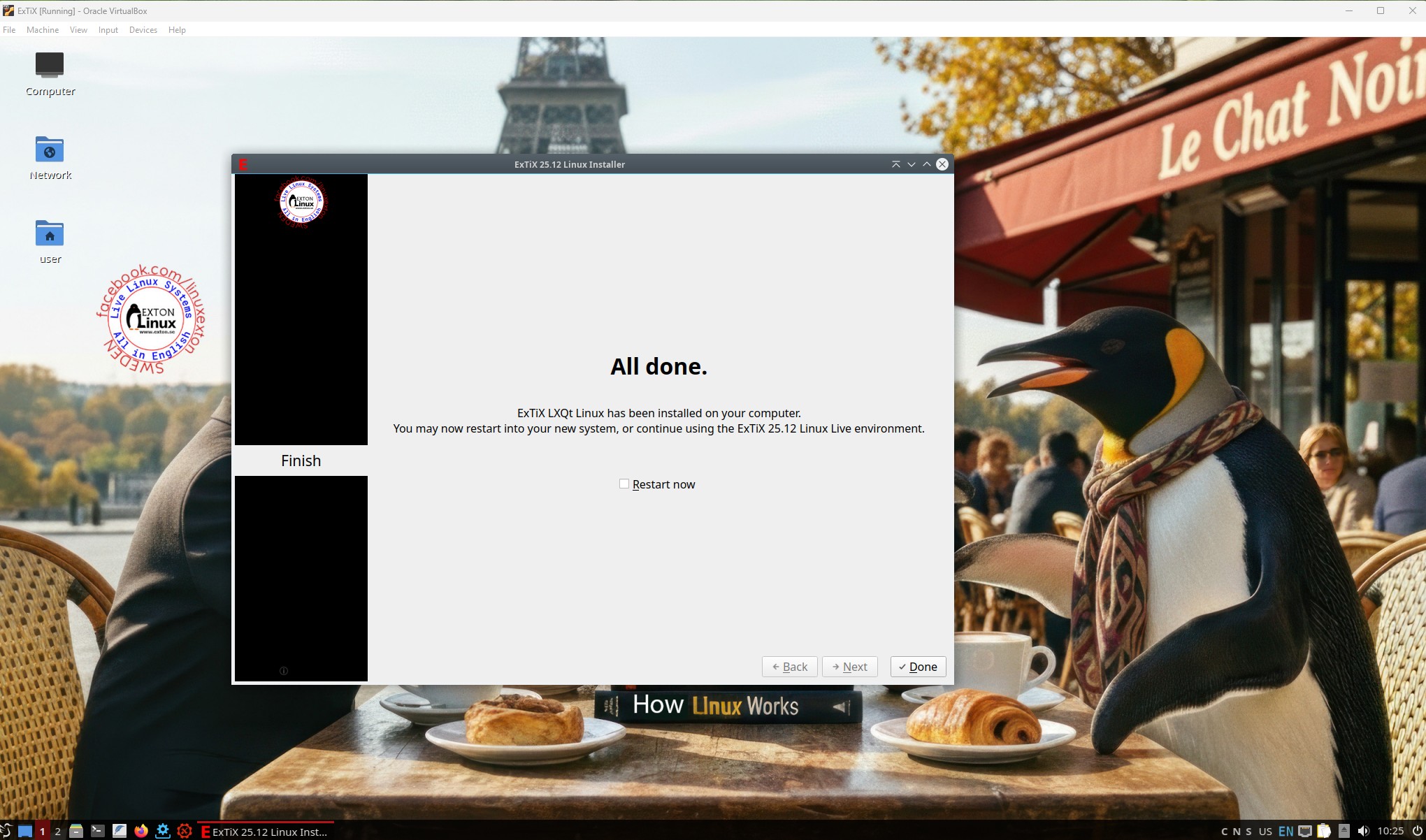
LXQt, 64 bit, is based on Debian Sid and upcoming Ubuntu 26.04. The original system includes the Desktop Environment Gnome. After removing Gnome I have installed LXQt 2.2. LXQt is the Qt port and the upcoming version of LXDE, the Lightweight Desktop Environment. It is the product of the merge between the LXDE-Qt and the Razor-qt projects: A lightweight, modular, blazing-fast and user-friendly desktop environment. NOTE: This ExTiX LXQt Build is for installation to UEFI-enabled or non-UEFI computers. You shall use Calamares Installer or Refracta Installer for that. Watch a screenshot when Calamares is running and this one when the install process is ready.

ABOUT Snaps
I have removed all snaps and snapd (The snap daemon) altogether from ExTiX 25.12 following the advice’s here. The main reason for that was that the ExTiX ISO became too big with snaps installed.

THE IMPORTANCE OF ExTiX 25.12 Build 251201 being based on UPCOMING Ubuntu 26.04 LTS
Programs won’t “crash” or anything like that. And I haven’t noticed any important “bugs”. That said you should of course be a bit careful. Version 251201 of ExTiX is for people who like to use “cutting-edge” software and the latest kernels etc. You will always have the latest Ubuntu software installed if you regularly run the command sudo apt update && sudo apt upgrade. If you do that for example every week you can be among the first to have Ubuntu 26.04 STABLE installed.

SCREENSHOTS
1. root’s Desktop
2. user’s Desktop
3. Showing a Samba connection
4. Running in VMware
5. Using Calamares Installer in VirtualBox

READ MORE…

Read about my Android-x86 Systems – 11, 10, Pie, Oreo, Nougat, Marshmallow, Lollipop and KitKat at andex.exton.net – latest is AndEX 11 (with GAPPS), AndEX 10 (with GAPPS) and AndEX Pie 9.0 (also with GAPPS)!
and
about my Android 16, 15, 14, 13, 12, 11, 10, Pie, Oreo, Nougat, Marshmallow and Lollipop versions for Raspberry Pi 5, Pi 4 and  Pi 3/2 at raspex.exton.se – latest is RaspAnd 16 (with GAPPS), RaspAnd 15 (also with GAPPS), RaspAnd 14 (also with GAPPS), 13 and 12 (without GAPPS), RaspAnd 11 (with GAPPS) and RaspAnd Oreo 8.1 (also with GAPPS)!


Follow me on Facebook…

No Comments extonExton Linux Systems

Exton|Defender fc43 (stable) with Cinnamon 6.4.1-4.fc43, Calamares Installer and Refracta Snapshot :: Build 251102

Exton|Defender SRS  (Super Rescue System) is a Linux system available as a Live System based on Fedora 43, 64bit. Fedora 43 was released on October 28, 2025. Exton|Defender is for administrating or repairing your system and data after a crash. Exton|Defender aims to provide an easy way to carry out admin tasks on your computer, such as creating and editing the hard disk partitions. It comes with a lot of Linux software such as system tools and basic tools (editors, Midnight Commander, network tools). Exton|Defender can, however, also be used as a normal Linux Desktop System. It requires no hard drive installation, but can easily be installed to hard drive if you want. Desktop environment: A special version of Cinnamon 6.4.1-4.fc43 developed by Fedora. NOTE: Just two days after I had released Exton|Defender – based on Fedora 42 stable – I found out that Fedora 43 was released (251028). I therefore simply HAD TO make an Exton|Defender version based on fc43.

SCREENSHOTS
Screenshot 1 – Exton|Defender while logged in as root
Screenshot 2 – The liveuser’s Desktop
Screenshot 3 – Running Samba

READ MORE…

Read about my Android-x86 Systems – 11, 10, Pie, Oreo, Nougat, Marshmallow, Lollipop and KitKat at andex.exton.net – latest is AndEX 11 (with GAPPS), AndEX 10 (with GAPPS) and AndEX Pie 9.0 (also with GAPPS)!
and
about my Android 16, 15, 14, 13, 12, 11, 10, Pie, Oreo, Nougat, Marshmallow and Lollipop versions for Raspberry Pi 5, Pi 4 and  Pi 3/2 at raspex.exton.se – latest is RaspAnd 16 (with GAPPS), RaspAnd 15 (also with GAPPS), RaspAnd 14 (also with GAPPS), 13 and 12 (without GAPPS), RaspAnd 11 (with GAPPS) and RaspAnd Oreo 8.1 (also with GAPPS)!


Follow me on Facebook…

No Comments Exton Linux Systems

Exton|Defender fc42 (stable) with Cinnamon 6.4.1, Calamares Installer and Refracta Snapshot :: Build 251026

Exton|Defender SRS  (Super Rescue System) is a Linux system available as a Live System based on Fedora 42, 64bit. Fedora 42 was released on April 15, 2025. Exton|Defender is for administrating or repairing your system and data after a crash. Exton|Defender aims to provide an easy way to carry out admin tasks on your computer, such as creating and editing the hard disk partitions. It comes with a lot of Linux software such as system tools and basic tools (editors, Midnight Commander, network tools). Exton|Defender can, however, also be used as a normal Linux Desktop System. It requires no hard drive installation, but can easily be installed to hard drive if you want. Desktop environment: A special version of Cinnamon 6.4.1 developed by Fedora.

NEWS 241210 ABOUT Exton|Defender BASED ON Fedora 42
I have discovered a way to run Exton|Defender fc42 from RAM also when starting Exton|Defender in UEFI mode. The previous Exton|Defender fc40 version could only run from RAM if it started up in Legacy mode. So my advice is to run this version SUPER FAST from RAM! The best way to run a Linux Live System! When Exton|Defender has booted up you can remove/eject the USB stick or the DVD. NOTE ALSO: In version 251026 I’ve managed to change Refracta Snapshot to a GUI (Graphical User Interface) app! It is therefore even easier to handle Refracta Snapshot now! IMPORTANT NOTE: On some computers Exton|Defender still can’t run from RAM in UEFI mode. Only in Legacy mode. I don’t know why. Sort of a mystery.

MOST IMPORTANT CHANGE
I’ve finally managed to install Refracta Snapshot in Exton|Defender, which means that you can create your own Fedora 42 System! I mean change everything to your liking and then create a new ISO. NOTE1: For Refracta Snapshot to work you have to run “my” kernel 6.17.4-amd64-exton when Refracta Snapshot is running. (It won’t work with Fedora’s kernel 6.17.4-200.fc42).
IMPORTANT NOTE: Actually you can run Fedora’s original kernel 6.17.4-200.fc42 and still use Refracta Snapshot. Just don’t uninstall/remove “my” kernel 6.17.4-amd64-exton before running Refracta Snapshot. And don’t remove the links /vmlinuz and /initrd.img to my kernel. Your new ISO will then be created without problems. When running your new ISO live (i.e. from a USB stick/DVD or in VirtualBox/VMware) my kernel will be used. If you install your new Fedora/Exton|Defender System to hard drive Fedora’s kernel 6.17.4-200.fc42 will be used.
NOTE2: Version 251026 of Exton|Defender can run on really old computers. As an example I could run it on my 19 years old laptop Acer Aspire 5102 WLMi.

System Tools included
NTFS-3g, GParted, Shred, Sfdisk (util-linux-ng), Rsync, Ddrescue, FSArchiver, TestDisk and Midnight Commander. Other programs (among many others): NetworkManager, Firefox, Parole Media Player, Samba, Java and Java Runtime Environment (JRE), Emacs, Safecopy, kernel headers and many compilation tools. Exton|Defender uses kernel 6.17.4-amd64-exton when running LIVE. After a hard drive installation Fedora’s original kernel 6.17.4-200.fc42.x86_64 can be used (as an alternative).

SCREENSHOTS
Screenshot 1 – Exton|Defender running in VirtualBox
Screenshot 2 – Refracta Snapshot has started
Screenshot 3 – Running in VMware
Screenshot 4 – Showing a WiFi connection
Screenshot 5 – Calamares Installer is ready
Screenshot 6 – Boot from hard drive

READ MORE…

Read about my Android-x86 Systems – 11, 10, Pie, Oreo, Nougat, Marshmallow, Lollipop and KitKat at andex.exton.net – latest is AndEX 11 (with GAPPS), AndEX 10 (with GAPPS) and AndEX Pie 9.0 (also with GAPPS)!
and
about my Android 16, 15, 14, 13, 12, 11, 10, Pie, Oreo, Nougat, Marshmallow and Lollipop versions for Raspberry Pi 5, Pi 4 and  Pi 3/2 at raspex.exton.se – latest is RaspAnd 16 (with GAPPS), RaspAnd 15 (also with GAPPS), RaspAnd 14 (also with GAPPS), 13 and 12 (without GAPPS), RaspAnd 11 (with GAPPS) and RaspAnd Oreo 8.1 (also with GAPPS)!


Follow me on Facebook…

No Comments extonExton Linux Systems

Run Raspberry Pi’s PIXEL Desktop on a PC or Mac – an Exton modified Build 251019 with Refracta Snapshot (so you can create your own Raspberrypi Debian 12 Pixel system)

NEWS 251019 about Raspberry Pi Debian 12 Pixel – 32bit – an Exton Build
 Study all included packages in Build 251019 – latest by 251019. I’ve added NetworkManager and also Wicd, which makes it easier to configure wireless connections. Choose the one which works for you.

Most important changes in Build 251019
This build replaces version 161223 , 170425, 180316, 180928, 190705, 191102, 201108, 220505, 230319 and 240414. I’ve upgraded Raspbian/Debian from Bullseye  to Bookworm – Debian 12. I’ve also upgraded the kernel from 6.1.0-6-686-pae to 6.8.1-pae-exton. I’ve also included kernel 6.1.0-39-686, which shall be used on very old computers. PAE (Physical Address Extension) increases the physical memory addressable by the system from 4 GB to 64 GB. Firefox have been installed so you’ll have a browser when logged in as root. You can’t run Chromium as root.  In Build 251019 I have removed Chromium. I saw no advantage in keeping it. I’ve also installed Samba so that you can reach your Windows computers in your home network.

NOTE 1

This Debian PIXEL 32bit build is for UEFI and non-efi computers. So you can boot Debian PIXEL in both UEFI and Legacy mode.

NOTE 2
On certain Desktop computers you may have to start Debian PIXEL in “failsafe” graphics mode. I.e. nomodeset. On one of my six computers (my newest) I could not run Debian PIXEL at all.

NOTE 3: Version 251019 of Debian PIXEL can run on really old computers. As an example I could run it on my 19 years old laptop Acer Aspire 5102 WLMi.

NOTE 4: On one of my newer computers I had to use these Grub boot lines after a hard drive installation – see below.
menuentry ‘Debian PIXEL 32bit 251019 (sda6-Samsung_T5)’ –class debian –class gnu-linux –class gnu –class os $menuentry_id_option ‘gnulinux-simple-a3623728-20d8-46e1-8586-0a0ac14fca69’ {
recordfail
load_video
insmod gzio
if [ x$grub_platform = xxen ]; then insmod xzio; insmod lzopio; fi
insmod part_gpt
insmod ext2
if [ x$feature_platform_search_hint = xy ]; then
search –no-floppy –fs-uuid –set=root a3623728-20d8-46e1-8586-0a0ac14fca69
else
search –no-floppy –fs-uuid –set=root a3623728-20d8-46e1-8586-0a0ac14fca69
fi
linux /boot/vmlinuz-6.1.0-39-686-pae root=UUID=a3623728-20d8-46e1-8586-0a0ac14fca69 acpi_backlight=vendor ro intel_iommu=off $vt_handoff nomodeset
initrd /boot/initrd.img-6.1.0-39-686-pae
}

NEWS 251019 – a YouTube video about Debian Pixel
I’ve discovered a YouTube video about my Debian Pixel Build 170425. The video is called Debian Pixel..Exton forks it for you..
This video is of course also valid for Build 251019. By watching the video you can learn a lot about Debian Pixel’s features.

OLD NEWS FROM 161223

On December 22, 2016 I read that the Raspberry Pi Foundation had announced the release of a new PIXEL image that can be booted on a PC or Mac. Study this site. I saw immediately that there was no installer included, which I thought was a little disappointing. Come to think of Refracta Tools, which work very well in Debian and Ubuntu. I quickly made a “remix” of the Raspberry Pi Foundation PIXEL image. My remix thus include Refracta Snapshot. This means that you can easily install the system to hard drive and you can just as easily make your own remix of the Raspberry Pi Foundation PIXEL image. I’ve added a few packages. Most important Synaptic, which I find essential.

About the PIXEL Desktop
Raspbian (Raspberry Pi OS) had its biggest update ever in September, 2016, thanks to a dazzling new desktop environment called PIXEL. Raspbian with PIXEL (which stands for “Pi Improved Xwindow Environment, Lightweight”) is a huge software update to the desktop environment. It introduces a crisp new interface, and is brimming with new programs and features.
IMPORTANT NOTE: Please note that the latest official version of Raspberry Pi OS (Debian 11 Bullseye) compatible with PC and Mac is from July 1, 2022 …

VirtualBox and VMware
My build/image works very well in VirtualBox and VMware. I.e. you can run the system directly from the ISO file and also install it to a virtual hard drive. You can of course also make your own Raspbian/Debian system with the the PIXEL Desktop using Refracta Snapshot (pre-installed).

KERNELS
Kernel 6.8.1-pae-exton is used in Build 251019. PAE (Physical Address Extension) increases the physical memory addressable by the system from 4 GB to 64 GB. If you want to run the system (which is 32bit) on very old computers you shall use kernel 6.1.0-39-686, which also is included.
NOTE about newer kernels: I did compile a new (6.17.2) 32bit kernel to use in Debian PIXEL. I could use it, but the system became awfully slow. Then I learned that Debian has reduced support for i386 systems. In Debian 13 (trixie) i386 (32bit) is no longer supported as a regular architecture: there is no official kernel and no Debian installer for i386 systems. Debian 250809: Users running i386 systems should not upgrade to trixie. Instead, Debian recommends either reinstalling them as amd64, where possible, or retiring the hardware. This version of Debian PIXEL will therefore be my last. (Debian 12 bookworm will be supported until June 30th, 2028).

Login and passwords
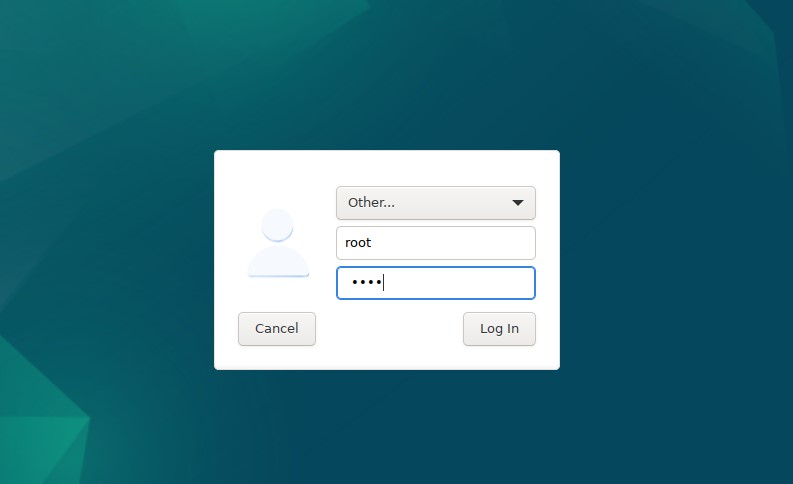
Log in to the PIXEL Desktop as the ordinary user user or as root. The passwords are raspberry respectively root. When logged in as user you can use Sudo to become root. (Command: sudo su). When running Debian Pixel live (from a DVD or a USB stick) you’ll end up (after the boot process) logged in automatically as the user user in X (PIXEL Desktop). You can log out and log in again as root (other) if you want – see below.
Windows Virtual Desktop on Azure
For smoother Raspberry PI performance a virtual PC such as azure windows virtual desktop which can be the best option due to its high end functionality and 24*7 top-notch support from a reliable desktop as a service provider.

Runs from RAM
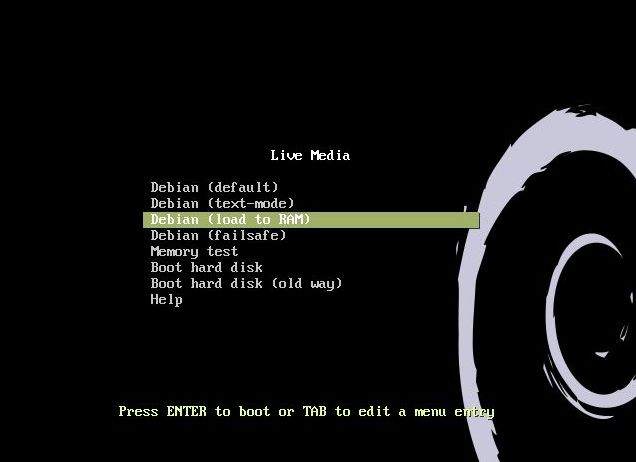
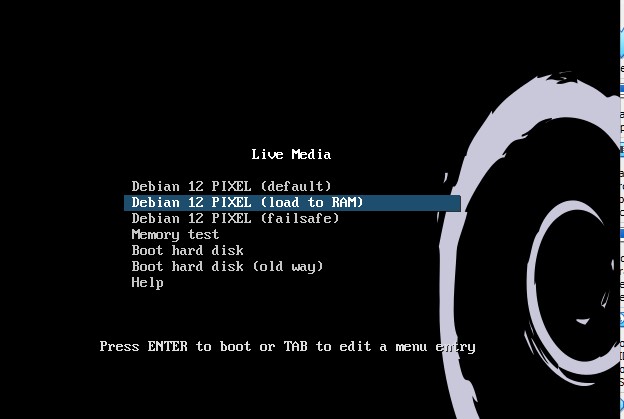
Another great thing is that this build can run from RAM. Use Boot alternative 2 (load to RAM). When running Debian Pixel on an UEFI computer you shall go to “Advanced – load to RAM”.  When the system has booted up you can remove the disc (DVD) or the USB stick. You’ll need at least 4 GB RAM to run the system that way. I.e. super fast! Watch this screenshot…
Spotify
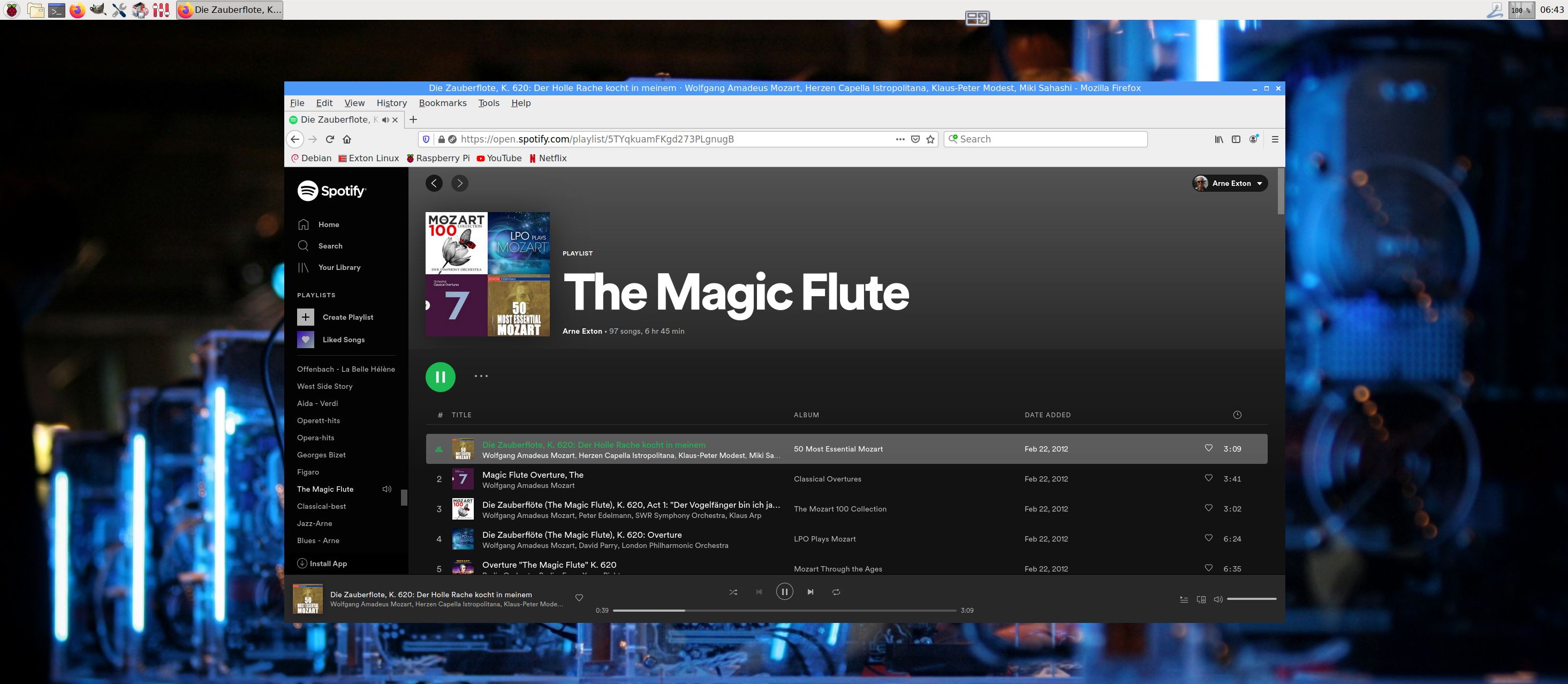
You may want to run Spotify. In this version of Debian Pixel you can’t install Spotify with the command sudo apt install spotify-client. Too many unfulfilled dependencies. You can, however, run Spotify Web Player. Use Firefox for that. Watch a screenshot when Spotify Web Player is running.

Important about Refracta
You can use the Refracta Snapshot (pre-installed) to create your own installable Raspberry Pi Debian 12 PIXEL system once you have installed my build to hard drive. I mean change everything and then create a whole new Debian live system. Start Refracta from Menu >> System tools >> Refracta snapshot. You don’t even have to install my build to hard drive before you can use the Refracta Snapshot. If you have plenty of RAM you can create a new (your own!) Debian PIXEL system while running my build from DVD or a USB stick. Please note that the whole Refracta process (creating your new ISO file) only will take 20 – 60 min! Please edit the configuration file /etc/refractasnapshot.conf first. Change line 45 and 46. I.e. decide where you want the ISO file to be build. The whole thing is very simple. NOTE: You can also do everything in VirtualBox or VMware. Use FileZilla (pre-installed) to transfer your new ISO file to your server. Or use Samba to transfer the ISO file to one of your Windows computers in your home Network – screenshot. In VirtualBox you can also drop the new ISO directly on your host Desktop. NOTE: You may have to do run Refracta Snapshot in three steps (1, 2 , 3).

Install to Debian PIXEL hard drive
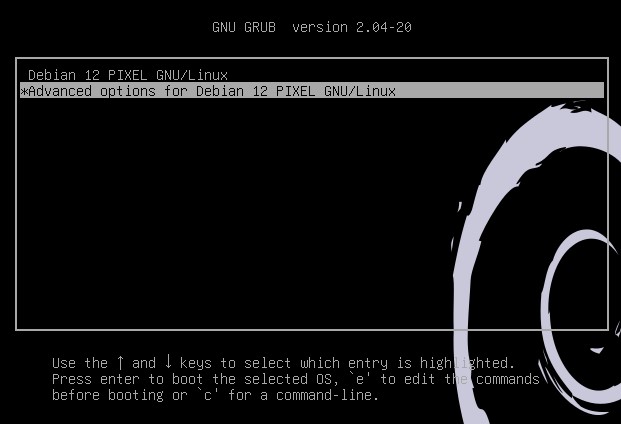
Just start Refracta Installer from the Menu >> System tools >> Refracta Installer and follow the instructions. Very simple. After a hard drive installation Grub’s boot menu will look like this.


Install Debian PIXEL to a USB stick

You can use Rufus in Windows. Persistence can’t be enabled though. The best way to achieve persistence on a USB stick is to burn Debian PIXEL to a DVD, start up the system from the DVD and then use Refracta Installer for the installation. Choose to install Grub in MBR on /dev/sdb. (Normally your USB stick, but check it carefully!) I.e. you will get a chance to choose between /dev/sda and /dev/sdb. This method will give you perfect persistence

Windows Virtual Desktop on Azure
For smoother Raspberry PI performance a virtual PC such as azure windows virtual desktop which can be the best option due to its high end functionality and 24*7 top-notch support from a reliable desktop as a service provider.

SCREENSHOTS
Screenshot 1 – User Desktop 251019
Screenshot 2 – Debian PIXEL running in VirtualBox
Screenshot 3 – Samba running (reach your Windows computers in your network)
Screenshot 4 – Refracta Installer is running
Screenshot 5 – Running from RAM – eject the USB stick
Screenshot 6 – The Desktop for root

DOWNLOAD
my Debian Raspberry Pi PIXEL Build 251019 for free from SourceForge.net Fast, secure and free downloads from the largest Open Source applications and software directory.

md5sum for debian-12-pixel-32bit-pae-exton-build-2030mb-251019.iso
Raspberry Pi is a trademark of Raspberry Pi Foundation

Read about my Android-x86 Systems – 11, 10, Pie, Oreo, Nougat, Marshmallow, Lollipop and KitKat at andex.exton.net – latest is AndEX 11 (with GAPPS), AndEX 10 (with GAPPS) and AndEX Pie 9.0 (also with GAPPS)!
and
about my Android 16, 15, 14, 13, 12, 11, 10, Pie, Oreo, Nougat, Marshmallow and Lollipop versions for Raspberry Pi 5, Pi 4 and  Pi 3/2 at raspex.exton.se – latest is RaspAnd 16 (with GAPPS), RaspAnd 15 (also with GAPPS), RaspAnd 14 (also with GAPPS), 13 and 12 (without GAPPS), RaspAnd 11 (with GAPPS) and RaspAnd Oreo 8.1 (also with GAPPS)!



Follow me on Facebook…

No Comments extonExton Linux Systems

PuppEX Trixie64 (Puppy Linux) – compatible with Debian 13 – with KDE Plasma 5:162 as DE :: Build 250901

NEWS 250901 ABOUT PuppEX Trixie64 – BUILD 250901 – with KDE Plasma 5:162

My new Puppy Linux derivative is built using the Trixie Build Script (mklive-trixie). It is compatible with Debian Trixie – Debian 13. It is for UEFI computers and non-UEFI computers. Build 250901 uses KDE Plasma 5:162 as Desktop Environment (DE). “Compatible with Debian 13” means that you can use the Apt command (apt update, apt upgrade, apt install MyUsefulPackage etc.) and Synaptic for installing thousands of new Debian packages in PuppEX Trixie64. PuppEX Trixie64 can easily be installed manually (frugal install) to hard drive if you have at least one Linux system installed. You must also use Grub as boot loader.

How to make a frugal installation – Instruction…

NOTE ABOUT SOUND
In PuppEX Trixie64 Build 250901 with KDE you will have sound also when logged in as root. That is essential since you normally run all Puppy/PuppEX versions as root. Screenshot of the Desktop for root…

SPECIAL NOTE ABOUT PuppEX Trixie64 KDE BUILD 250901
Normally you run all Puppy Linux versions as root. I.e. you will automatically be logged in as root to the desktop. Not as regards Build 250901 though. When the boot process is ready you will end up at LightDM‘s Login Manager page. Log in as the ordinary user puppy with password puppex. You will then enter the KDE Plasma Desktop. You can also log in to KDE as root with password root. While logged in as the ordinary user puppy you can of course use Sudo to become root. Example command: sudo pcmanfm.

REMASTER PuppEX Trixie64
Please note that you can build your own Puppy Trixie64 version using PuppEX Trixie64 as a “template”. Do it like this:
1) Make a frugal install of PuppEX Trixie64 – Instruction
2) Change everything to your liking
3) Start the remasterscript (QuickRemaster 1.7.1).
Watch this screenshot…

NOTE: The wallpapers are (of course) generated by AI.

READ MORE…

Read about my Android-x86 Systems – 11, 10, Pie, Oreo, Nougat, Marshmallow, Lollipop and KitKat at andex.exton.net – latest is AndEX 11 (with GAPPS), AndEX 10 (with GAPPS) and AndEX Pie 9.0 (also with GAPPS)!
and
about my Android 16, 15, 14, 13, 12, 11, 10, Pie, Oreo, Nougat, Marshmallow and Lollipop versions for Raspberry Pi 5, Pi 4 and  Pi 3/2 at raspex.exton.se – latest is RaspAnd 16 (with GAPPS), RaspAnd 15 (also with GAPPS), RaspAnd 14 (also with GAPPS), 13 and 12 (without GAPPS), RaspAnd 11 (with GAPPS) and RaspAnd Oreo 8.1 (also with GAPPS)!


Follow me on Facebook…

No Comments extonExton Linux Systems